> For the complete documentation index, see [llms.txt](https://wallee.gitbook.io/documentation/llms.txt). Markdown versions of documentation pages are available by appending `.md` to page URLs; this page is available as [Markdown](https://wallee.gitbook.io/documentation/developer-tools/customization/document-handling/resource-editor-1-1.md).
# Resource Editor
In the [Resource Editor](https://{inject-platform-url}/select?target=/space/resources/editor), you’ll find all the images, files, and templates that define the look and content of your checkouts. With this handy tool, you can individually overwrite standard texts for each language, add or replace images, and use predefined variables to create personalized messages. Keep your unique style consistent — even when processing payments.
### Resource Structure
All resources related to the look and feel of your documents can be found in the [Document](https://{inject-platform-url}/select?target=/space/resources/editor) folder within the Resource Editor:
* **css** – Contains all CSS files used to style your templates. We use the `.twig` templating language for document styling.
* **fonts** – Store custom fonts here that you want to apply to your documents (be sure to reference them in your CSS file).
* **images** – Holds all document images, including the background PDF. The background PDF contains the static backdrop for your document, with other elements printed on top. The background in use is also defined in the CSS file.
* **template** – Contains the `.twig` templates for your documents.
### How to upload documents
While configuring settings like email configuration, attachments, document templates, etc., you will be able to select different files. Those files need to be uploaded to the Resource Editor. You can upload them by going to [Space > Settings > Customization > Resource Editor](https://{inject-platform-url}/select?target=/space/resources/editor). From there, you can upload your files to a selected folder via drag and drop. If you are unsure which folder to upload to or what type of file is required, you can see this during the process of configuring the settings mentioned above.
{% hint style="info" %}
Individual pictures for the configuration of different payment methods, also need to be uploaded here.
{% endhint %}
{% hint style="danger" %}
By uploading files, you confirm that you hold the necessary intellectual property rights to share them with us. We ensure that these resources are only accessible to users who have access to your space.
{% endhint %}
### Styling tips for templates
#### Use Custom Fonts Inside Documents
You can use custom fonts in your templates by uploading the `.ttf` files to the fonts folder and referencing them in your css.
```css
@font-face {
font-family: "OpenSans";
font-weight: normal;
src: url('resource:/document/fonts/OpenSans-Regular.ttf');
-fs-pdf-font-embed: embed;
-fs-pdf-font-encoding: Identity-H;
}
```
#### Change Document Background Template
When generating a document, the dynamic content is printed over the background specified in the `/documents/css/base.css` file in your space. This template applies to all documents.
```css
@page {
background-image: url('resource:/document/images/document-background.pdf');
padding: 0;
/* Border of the Document */
margin: 30mm 10mm 20mm 10mm;
size: A4;
}
```
To customize the document, you can either change the path here or replace `/document/images/document-background.pdf` with your own template. You can also use different templates for the first page and subsequent pages by adding the `@page:first` selector to your `base.css` file. This will use the document-background.pdf for the following pages and the first-document-background.pdf for the first page.
```css
@page {
background-image: url('resource:/document/images/document-background.pdf');
padding: 0;
/* Border of the Document */
margin: 30mm 10mm 20mm 10mm;
size: A4;
}
@page:first {
background-image: url('resource:/document/images/first-document-background.pdf');
}
```
#### Use Variables inside the Templates
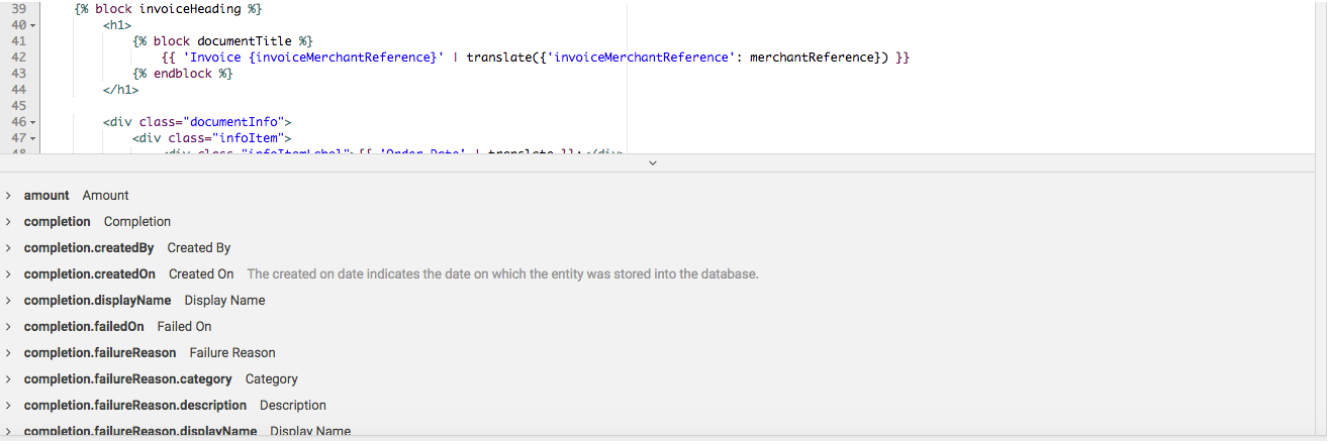
You can use variables in your template files. All variables available in the respective context, along with their descriptions, are listed in the lower tab of the Resource Editor. Use `twig` syntax to render these variables.
Figure 1: The editor displays the variables available in the current context.
### How to edit Twigs
1. Choose a Twig-file of your choosing inside the folder structure diplayed on the left side
2. Click on the pencil icon on the top of the text border to edit the Twig.
3. Make your changes and click on the save button in the same place the pencil icon was.
4. Publish your changes on the top right "Publish" button if you want to make them available for your customers
### Preview
Make sure to select what you want displayed and select the language that should be displayed. Please be aware that the changes made in your resource settings and editor will only be displayed once the changes are saved. The preview takes the last case of what you select—for example, for an invoice, it displays the last invoice you sent and applies the changes just saved in the resource editor. The changes also only apply to the customer or your test transactions once you click on "Publish" in the top right.