> For the complete documentation index, see [llms.txt](https://wallee.gitbook.io/documentation/llms.txt). Markdown versions of documentation pages are available by appending `.md` to page URLs; this page is available as [Markdown](https://wallee.gitbook.io/documentation/payments/integrations/features/moto-payments.md).

# MOTO Payments

Learn about MOTO Payments, available on wallee

**MOTO** stands for **Mail Order / Telephone Order**: a payment you enter on behalf of the customer, for an order received by phone, mail or a similar channel. The customer is not present at a terminal and does not complete a checkout themselves — you take their payment details and process the payment for them.

Typical cases are a call-centre order, a phone reservation, or a booking taken by email.

### Which payment methods support MOTO

MOTO is a sales channel that a payment method has to support. The methods available for MOTO are:

* Visa and Visa V Pay
* Mastercard and Maestro
* TWINT
* PostFinance Pay, PostFinance Card and PostFinance E-Finance

{% hint style="info" %}
Wallets such as **Apple Pay and Google Pay cannot be used for MOTO** — they require the cardholder's device and authentication, which a MOTO payment does not have. For the full channel-by-method overview, see [Payment Methods](/documentation/payments/integrations/payment-methods.md).
{% endhint %}

### Before you can take MOTO payments

The **Virtual Terminal** function must be activated for your space before you can process payments through the portal on the customer's behalf.

{% hint style="warning" %}
For transactions processed through **Worldline** terminals, activating the virtual terminal requires specific activation by the acquirer. See [Refunds](/documentation/payments/overview/transaction-states/refunds.md), where the same virtual terminal function is used to refund terminal transactions once the customer has left the store.
{% endhint %}

### How to take a MOTO payment in the portal

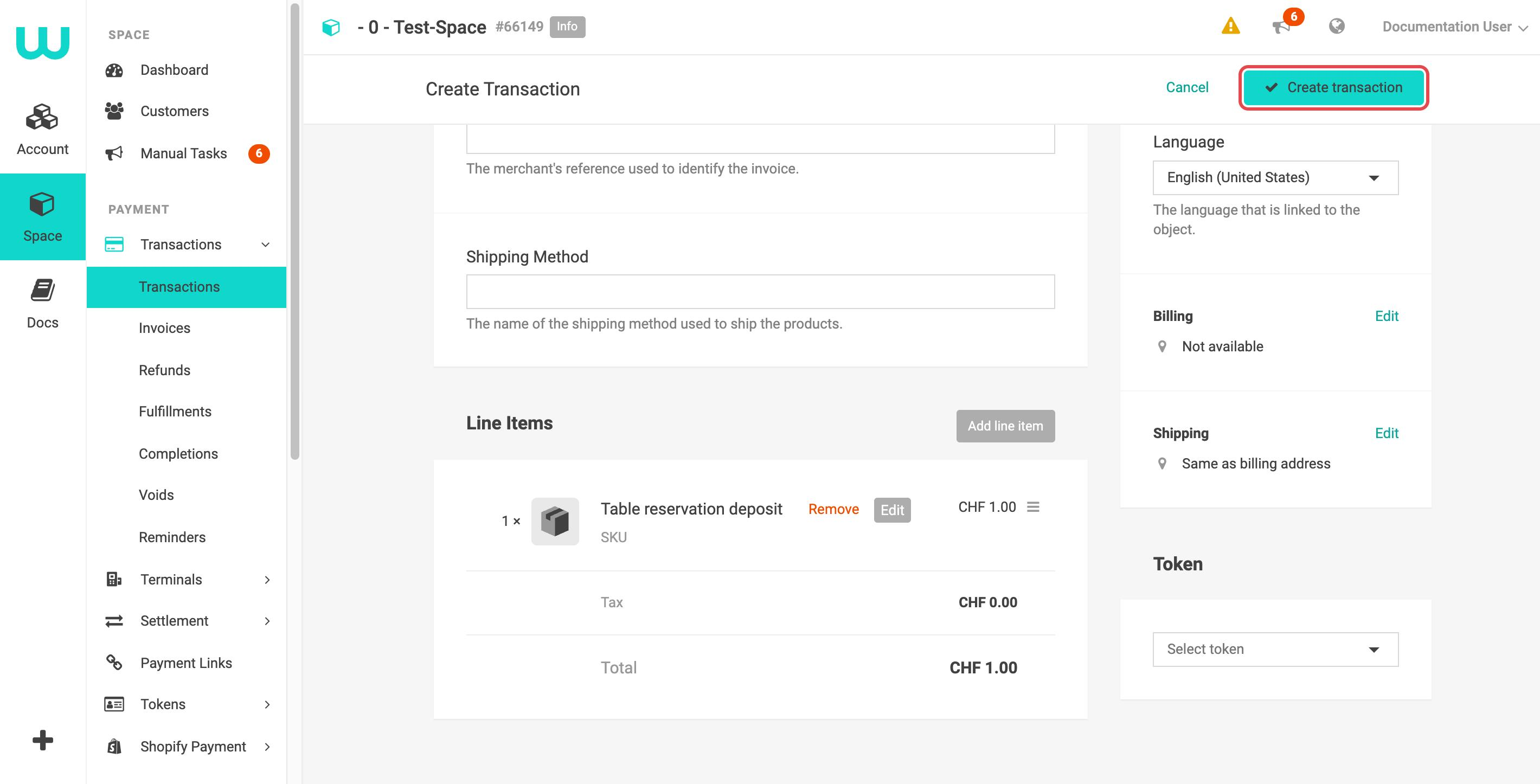
1. In your space, open **Payment > Transactions > Transactions** and click **Create transaction**.

<figure><img src="https://231749824-files.gitbook.io/~/files/v0/b/gitbook-x-prod.appspot.com/o/spaces%2FzFihtba0Cos9hcTFUfuK%2Fuploads%2F8zMkUUZ2HdDTIv6vAJ39%2Fmoto-01-list.png?alt=media" alt="Transaction list with the Create transaction button highlighted"><figcaption><p>MOTO payments start in the transaction list.</p></figcaption></figure>

2. Under **Payment Type**, choose **Mail and Telephone Order**. Select the **Currency** and enter a **Merchant Reference**, for example your order number, so you can find the payment later.

<figure><img src="https://231749824-files.gitbook.io/~/files/v0/b/gitbook-x-prod.appspot.com/o/spaces%2FzFihtba0Cos9hcTFUfuK%2Fuploads%2FyQ1Y2utRyjuMAIlvdaKj%2Fmoto-02-type.png?alt=media" alt="Create transaction form with the payment type Mail and Telephone Order highlighted"><figcaption><p>The payment type decides the channel. Charge Flow sends the customer a payment request instead, Terminal sends the payment to a terminal.</p></figcaption></figure>

3. Under **Line Items**, click **Add line item** and enter what the customer pays for, with **Name**, **Unique ID**, **Total Price** and **Quantity**. Check the total and click **Create transaction**.

<figure><img src="https://231749824-files.gitbook.io/~/files/v0/b/gitbook-x-prod.appspot.com/o/spaces%2FzFihtba0Cos9hcTFUfuK%2Fuploads%2FRrGI00E8PfflNqmkFvqk%2Fmoto-03-lineitems.png?alt=media" alt="Line items with a total of CHF 1.00 and the Create transaction button highlighted"><figcaption><p>The total of the line items is the amount that will be charged.</p></figcaption></figure>

4. A payment window opens. Choose the payment method the customer wants to pay with, for example **Credit / Debit Card**.

<figure><img src="https://231749824-files.gitbook.io/~/files/v0/b/gitbook-x-prod.appspot.com/o/spaces%2FzFihtba0Cos9hcTFUfuK%2Fuploads%2Fy4WMwD5wogmX1hojJDjM%2Fmoto-04-method.png?alt=media" alt="Payment window with the list of available payment methods"><figcaption><p>Only payment methods that are active in your space are shown.</p></figcaption></figure>

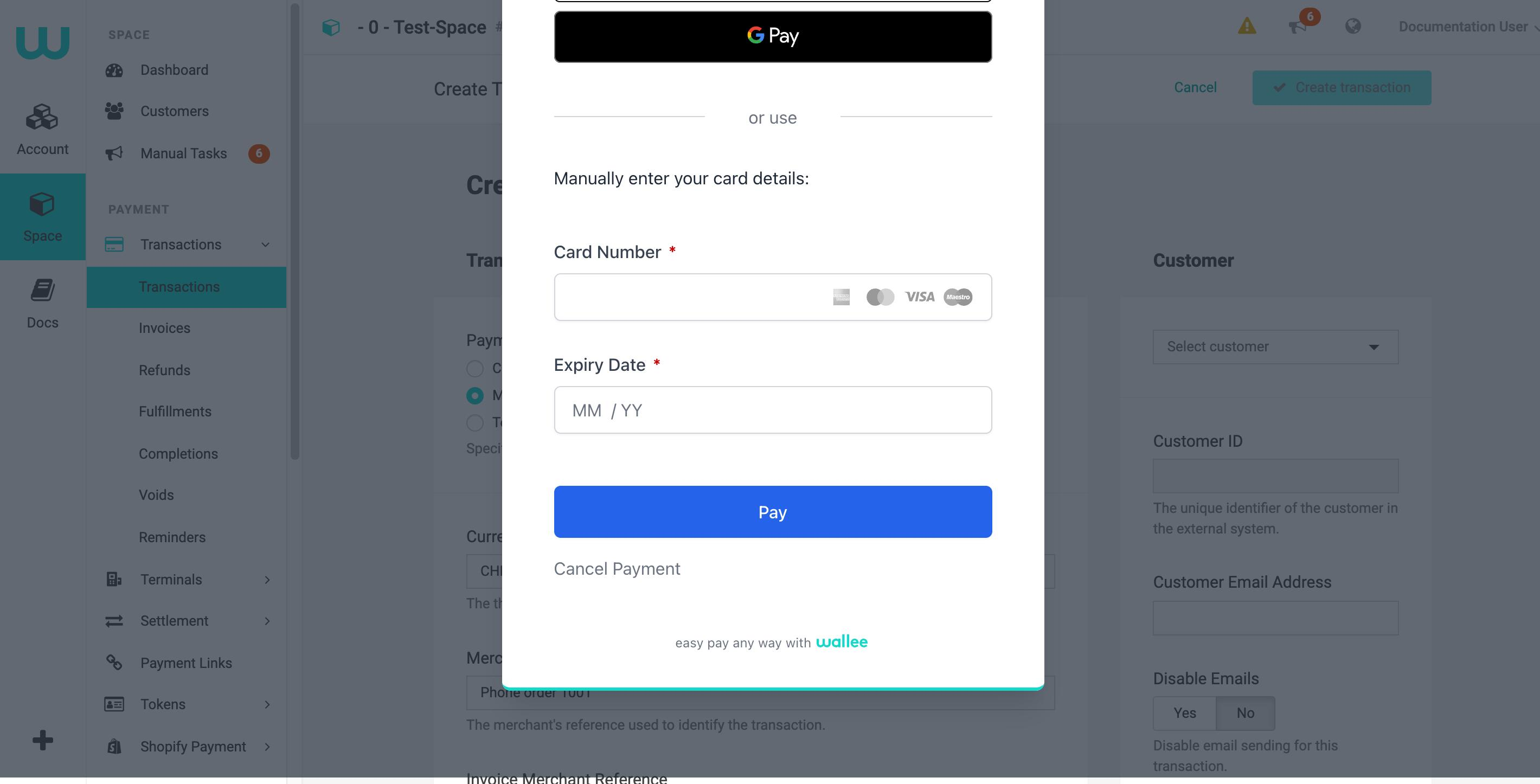
5. Enter the **Card Number** and **Expiry Date** the customer gives you and click **Pay**. A MOTO payment doesn't ask for the security code (CVC).

<figure><img src="https://231749824-files.gitbook.io/~/files/v0/b/gitbook-x-prod.appspot.com/o/spaces%2FzFihtba0Cos9hcTFUfuK%2Fuploads%2FchwQHvCDFSQTlgGCmNSj%2Fmoto-05-card.png?alt=media" alt="Card form with the card number and expiry date fields and the Pay button"><figcaption><p>Enter the card details on behalf of your customer.</p></figcaption></figure>

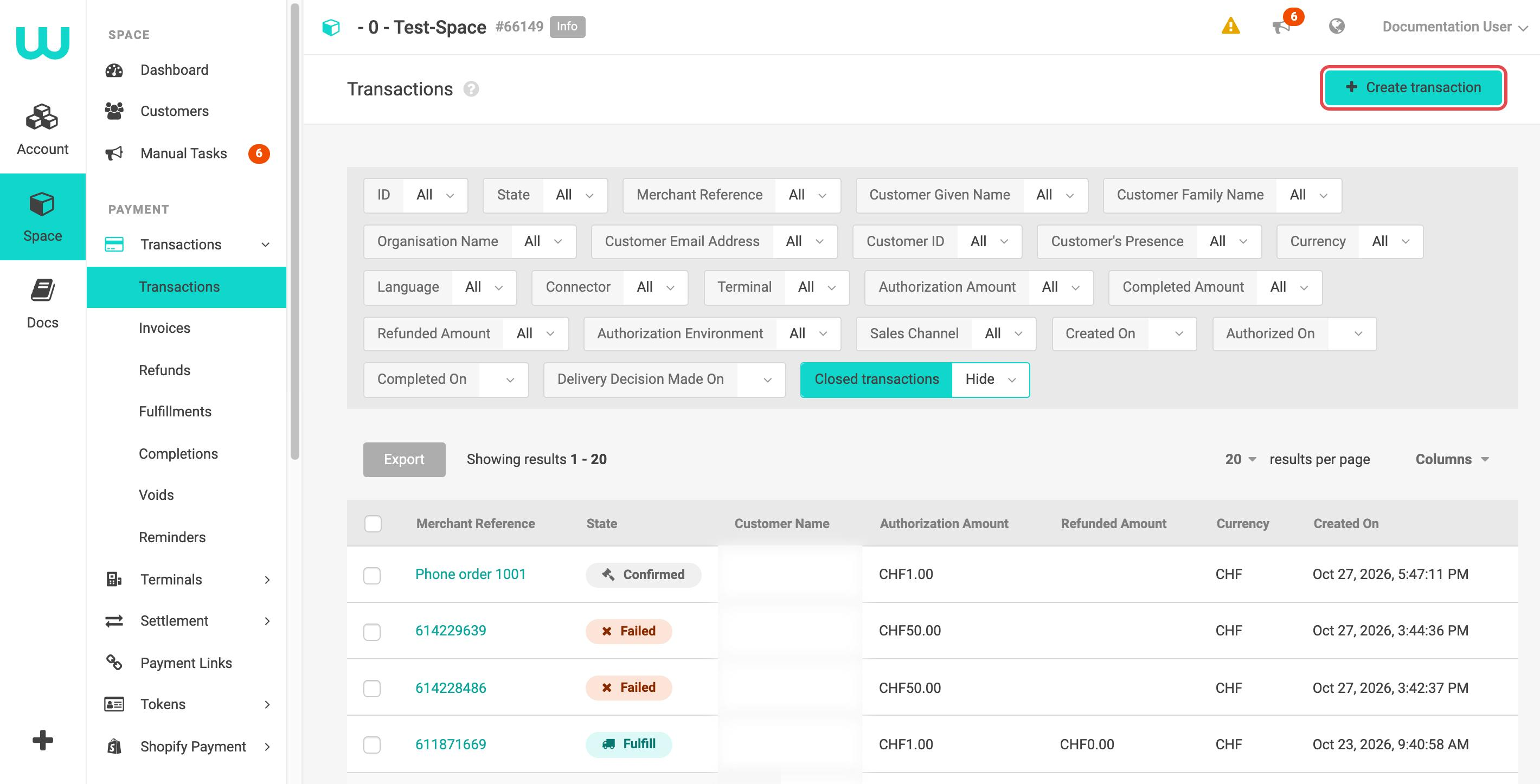
6. The transaction appears in the transaction list with the merchant reference you entered. If you close the payment window without paying, the transaction stays in the list and is closed after some time.

{% hint style="warning" %}
Never write down or store the card details your customer gives you. Enter them directly in the payment window.
{% endhint %}

### Cost and risk to keep in mind

MOTO card payments carry a **higher risk and higher fees** than other channels, for one reason: the cardholder is not authenticated. [3-D Secure](/documentation/payments/integrations/features/3-d-secure.md) — which shifts the liability for a fraudulent chargeback to the card issuer — cannot apply to a MOTO payment, because the customer never authenticates online. The chargeback liability therefore stays with you.

{% hint style="info" %}
**An alternative that avoids the MOTO fees:** instead of entering the card details yourself, send the customer a [payment link](/documentation/payments/integrations/features/payment-links.md) or use a [charge flow](/documentation/payments/integrations/features/charge-flows.md) that emails them a link. The customer then pays through a normal, authenticated checkout — which is cheaper and moves the fraud liability off you. This is often the better choice for call-centre and webshop scenarios.
{% endhint %}

### Related topics

* [Payment Methods](/documentation/payments/integrations/payment-methods.md) — which methods support MOTO, and on which other channels.
* [Payment Links](/documentation/payments/integrations/features/payment-links.md) — the authenticated alternative to entering card details yourself.
* [Charge Flows](/documentation/payments/integrations/features/charge-flows.md) — sending the customer a payment request instead of keying it in.
* [Refunds](/documentation/payments/overview/transaction-states/refunds.md) — the virtual terminal function, also used for refunding terminal transactions.