> For the complete documentation index, see [llms.txt](https://wallee.gitbook.io/documentation/llms.txt). Markdown versions of documentation pages are available by appending `.md` to page URLs; this page is available as [Markdown](https://wallee.gitbook.io/documentation/payments/integrations/plugins/built-by-wallee/shopware-6/integration.md).
# Integration
### Overview
The {inject-platform-name} Plugin integrates modern payment processing into Shopware 6, offering features like iFrame-based payments, refunds, captures, and PCI compliance.
### Requirements
* Shopware Version: 6.5.x, 6.6.x, 6.7.x
* PHP: Version required by your Shopware installation
* {inject-platform-name} Account: Space ID, User ID, API Key from {inject-platform-name} Portal
### Compatibility
| **Shopware Version** | **Plugin Version** | **PHP Version** | **Support Until** |
| -------------------- | ------------------ | --------------- | ----------------- |
| 6.7.x | 7.x.x | PHP 8.2 and 8.3 | Ongoing |
| 6.6.x | 6.x.x | PHP 8.2 and 8.3 | December 2025 |
| 6.5.x - Deprecated | 5.x.x | PHP 8.2 and 8.3 | October 2024 |
### Installation
#### Via the Shopware marketplace
1. Log in to your Shopware backend
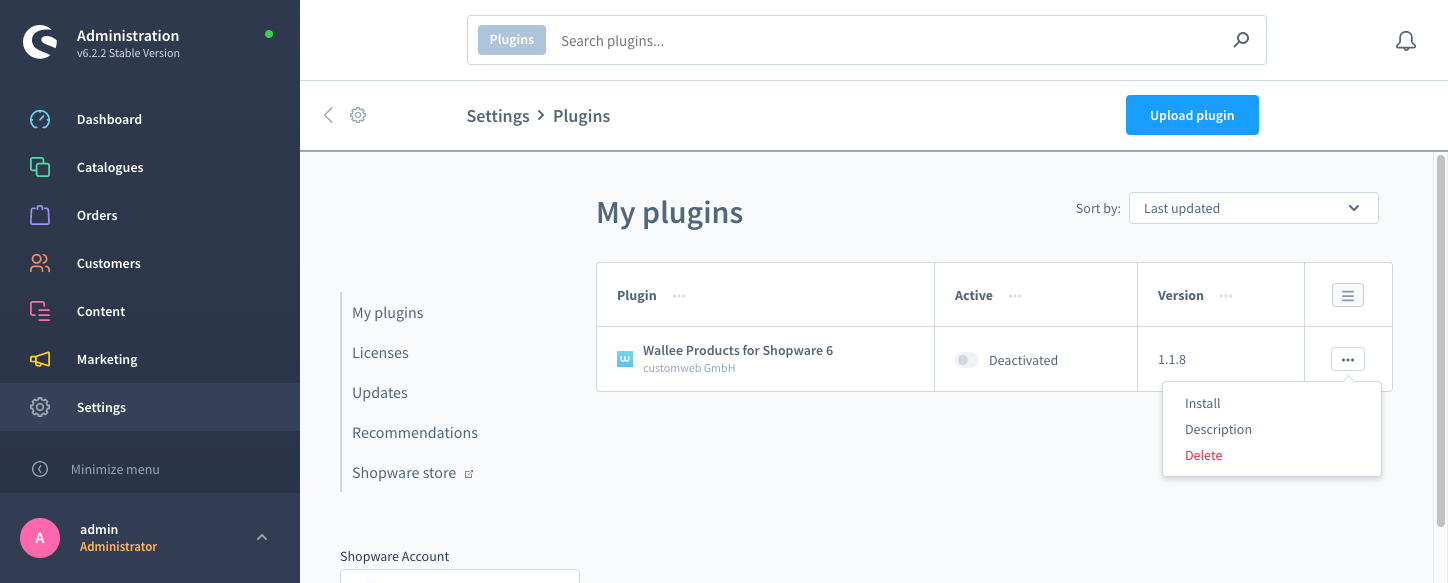
2. Go to **Settings > System > Plugins**
3. Click on the menu caret and select the Install link of the plugin to install\\
4. Activate the plugin from the Plugin Manager.
#### Via Composer (recommended)
1. Navigate to your Shopware root directory.
2. Run:
```bash
composer require wallee/shopware-6
php bin/console plugin:refresh
php bin/console plugin:install --activate --clearCache Wallee
```
#### Manual installation
1. Download the latest release
2. Extract ZIP into custom/plugins/
3. Run:
```
php bin/console plugin:refresh
php bin/console plugin:install --activate --clearCache {inject-platform-name}
```
### Portal set-up
#### Create an application user
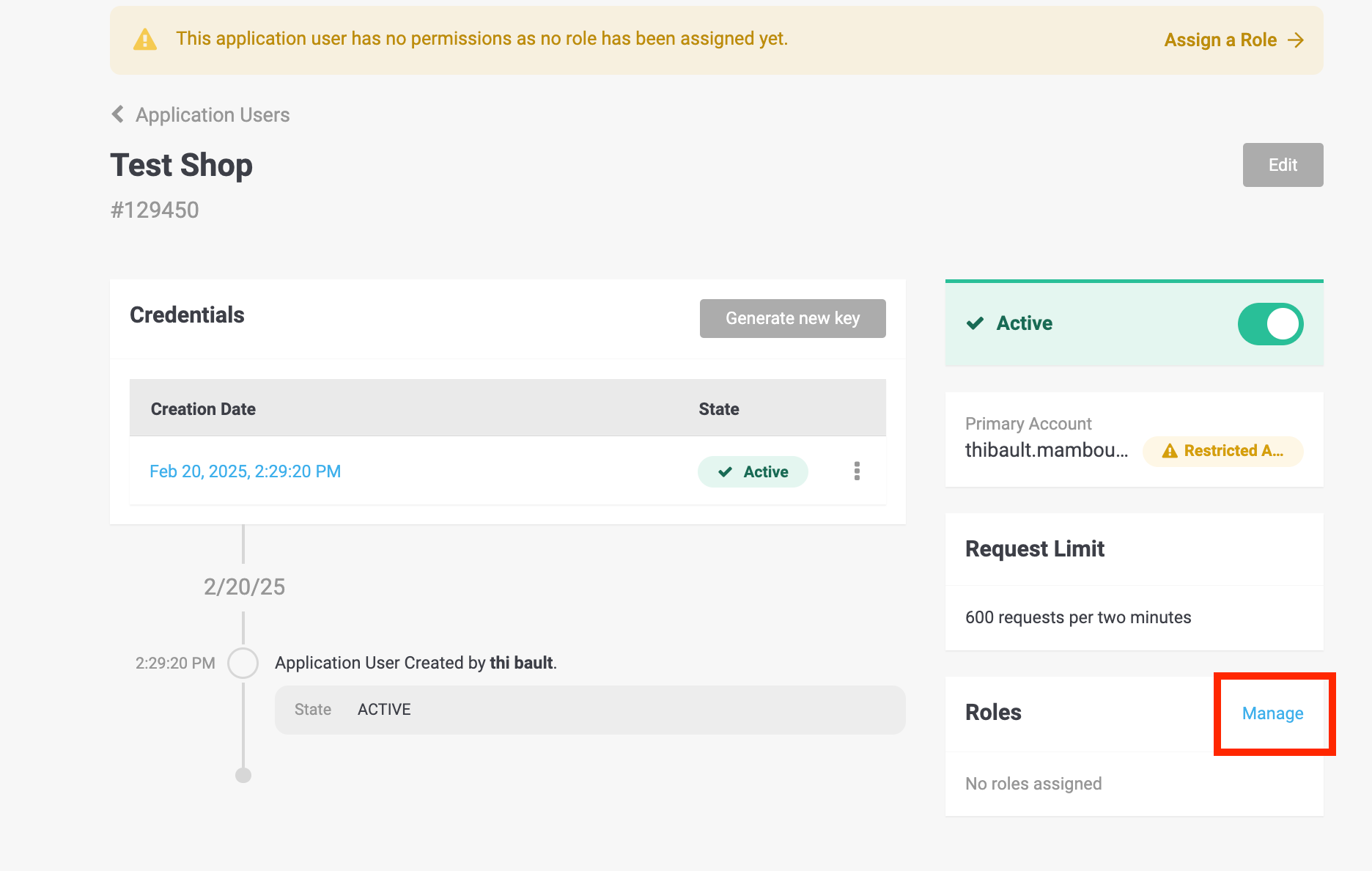
1. In {inject-platform-name} Portal, go to **Account > Application Users**
2. Create a new application user
3. Copy the user ID and authentication key — the key is shown only once, see [Application User](/documentation/developer-tools/application-user.md).
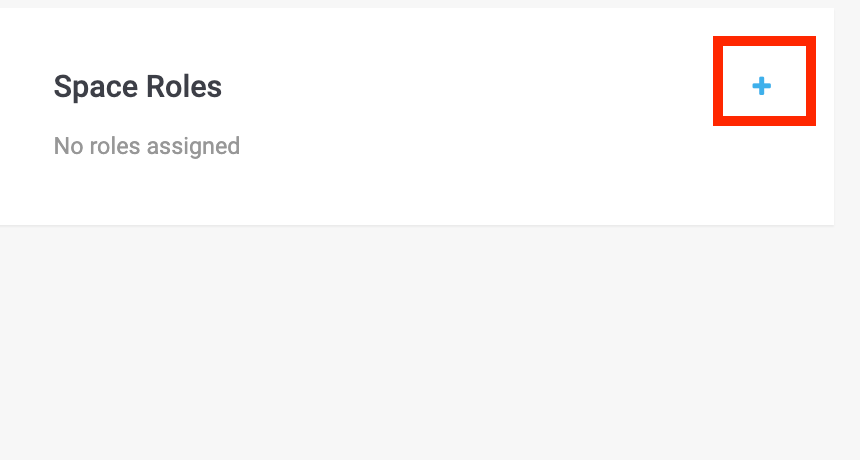
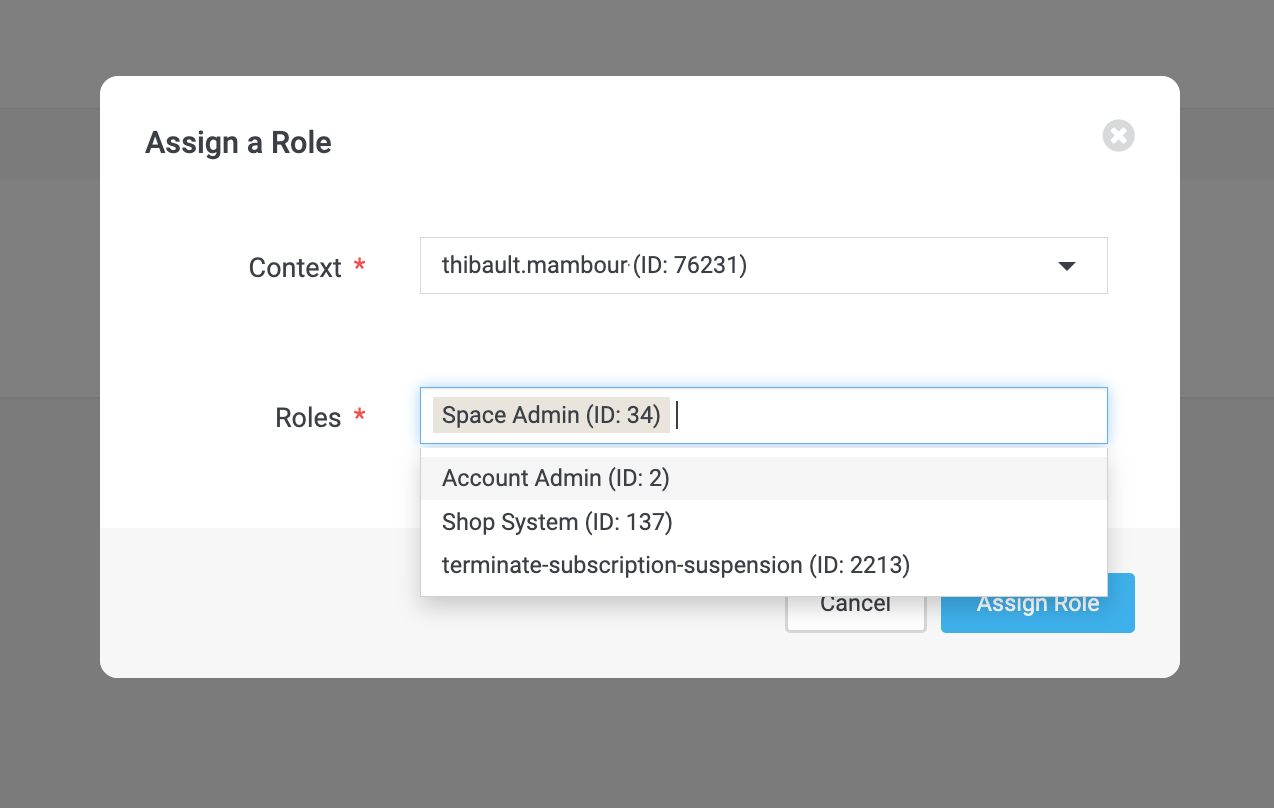
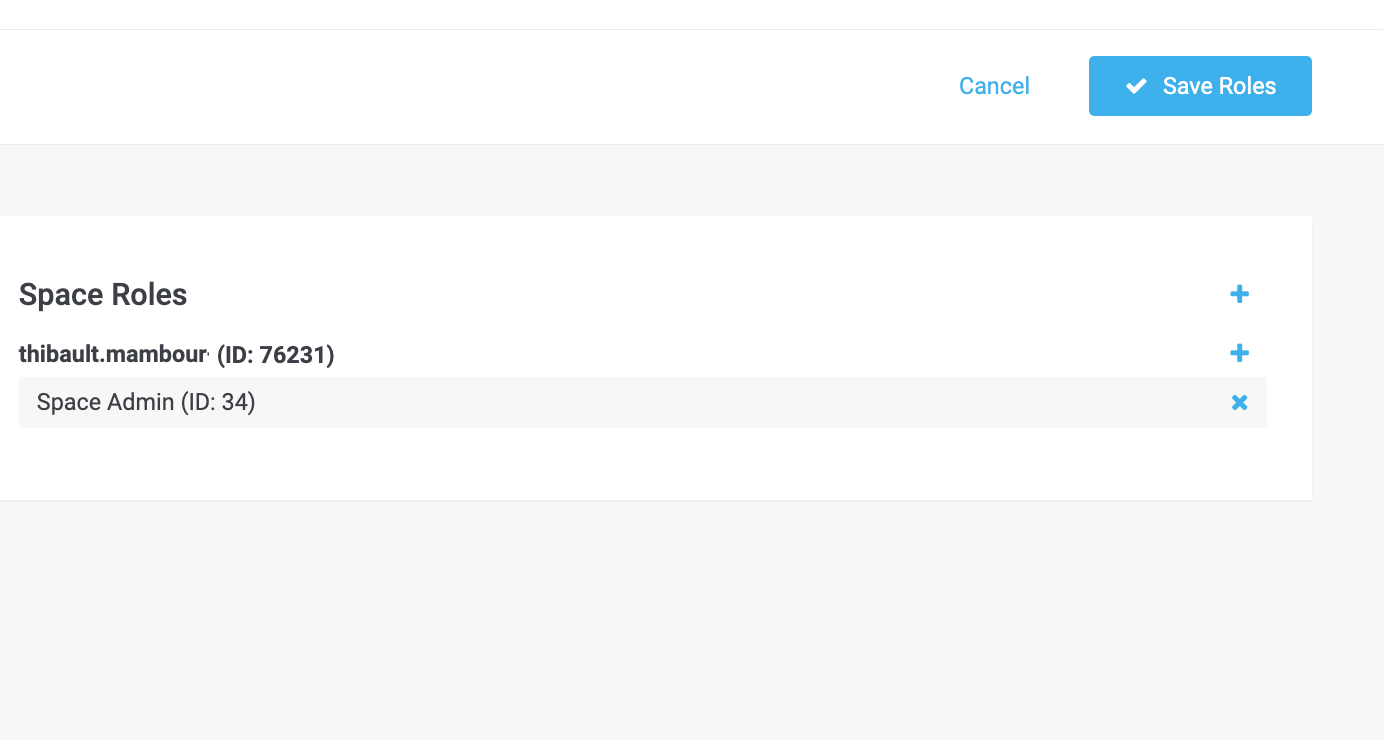
4. Assign the Space Admin role\\
#### Set up payment methods
1. In {inject-platform-name} Portal, go to **Space > Settings > Processors**
2. Configure processor (e.g. Test Processor with Bogus Processor)
3. Add Connectors
### Shopware set-up
#### API credentials
1. In Shopware Admin: **Settings > Extensions > {inject-platform-name}**
2. Enter Space ID, User ID, API Key
3. click on Save
#### Payment methods
* Managed in {inject-platform-name} Portal
* Disable methods in Portal or Shopware under **Settings > Payment Methods**
#### Options
| Option | What it does |
| --------------------------------- | --------------------------------------------------------------------------------------------------------------------- |
| **Space View ID** | Customizes the checkout style — see the space view configured in your space. |
| **Integration options** | iFrame, Lightbox or Payment Page — see [Checkout Integrations](/documentation/payments/integrations/integrations.md). |
| **Line item consistency** | Handles rounding differences between Shopware and the transaction. |
| **Send order confirmation email** | Controls which system sends the confirmation email. |
### Transaction states
The payment process is standardized across all payment methods — see [Transaction States](/documentation/payments/overview/transaction-states.md) for the full lifecycle.
#### State mapping in Shopware
| State in {inject-platform-name} | Shopware order status |
| -------------------------------------- | --------------------- |
| Authorized in {inject-platform-name} | In Progress |
| Authorization failed | Failed |
| Cancelled in {inject-platform-name} | Cancelled |
| Invoice paid in {inject-platform-name} | Paid |
### Related topics
* [Overview](/documentation/payments/integrations/plugins/overview.md) — the two ways a plugin connects to your space.
* [Connector Configuration](/documentation/payments/overview/processors-payment-methods-and-connectors/connectors.md) — where capture behaviour and 3-D Secure are configured.