> For the complete documentation index, see [llms.txt](https://wallee.gitbook.io/documentation/llms.txt). Markdown versions of documentation pages are available by appending `.md` to page URLs; this page is available as [Markdown](https://wallee.gitbook.io/documentation/payments/integrations/plugins/built-by-wallee/woocommerce.md).
# WooCommerce
### Prerequisites
* Create a [**{inject-platform-name} account**](https://{inject-platform-url}/user/signup/) if you don’t already have one.
### Installation
1. In your WordPress backend, go to **Plugins > Add New**.
2. Search for **{inject-platform-name}**.
3. Install the plugin from the search results.
4. Once installed, the plugin will appear under **Plugins**. You can open the configuration from there.
{% hint style="info" %}
You will automatically be notified once updates are available for the plugin within WooCommerce.
{% endhint %}
### Configuration
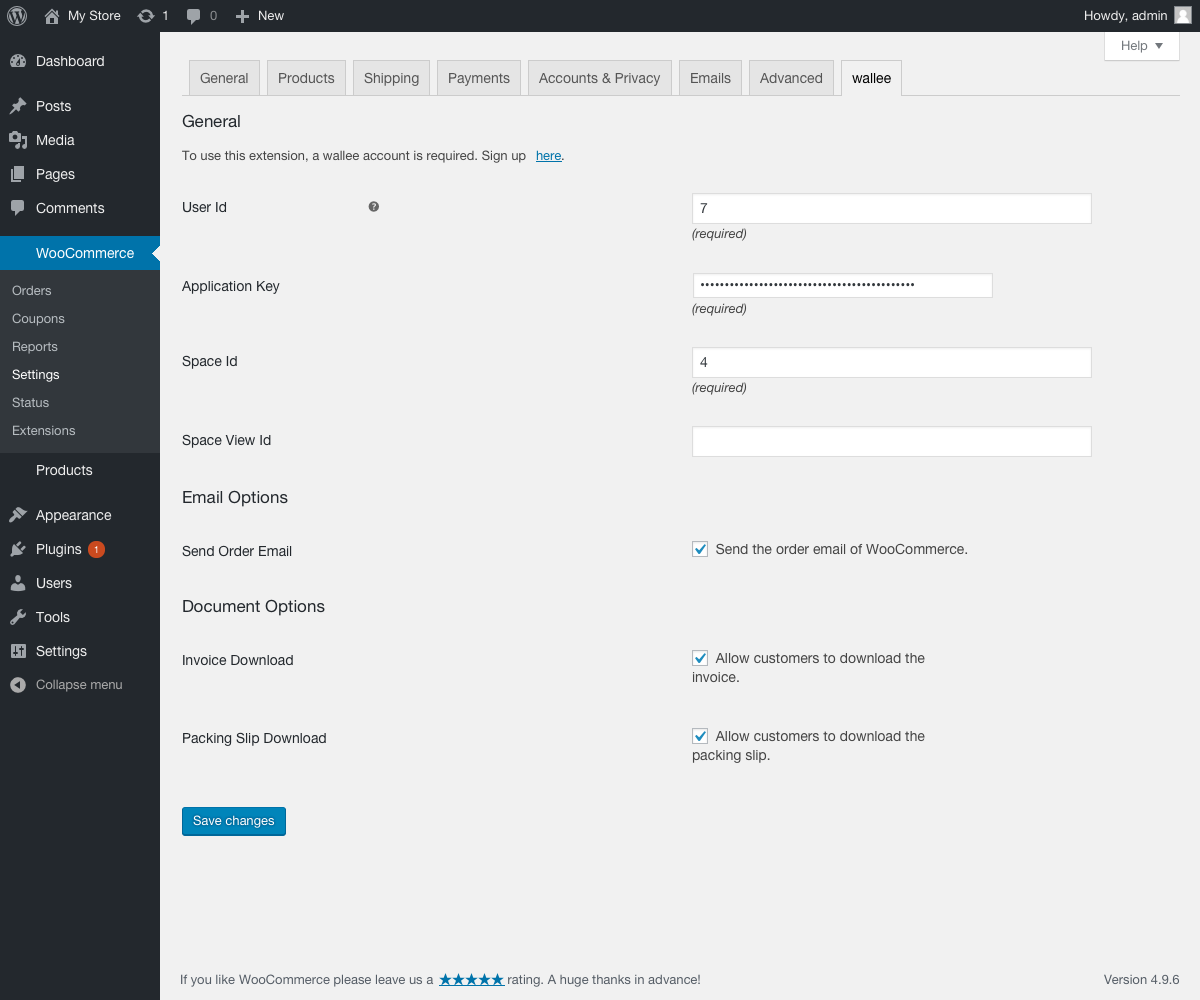
1. Navigate to **WooCommerce > Settings > {inject-platform-name}**.
2. Enter your **{inject-platform-name} Space ID**, **User ID**, and **Authentication Key** (create an application user manually in {inject-platform-name}).\\
3. Optionally disable downloading invoice and packing slip (this prevents customers from downloading them in the WooCommerce frontend).
4. Save the configuration.
After saving:
* Payment methods are created in WooCommerce.
* Webhooks are automatically set up.
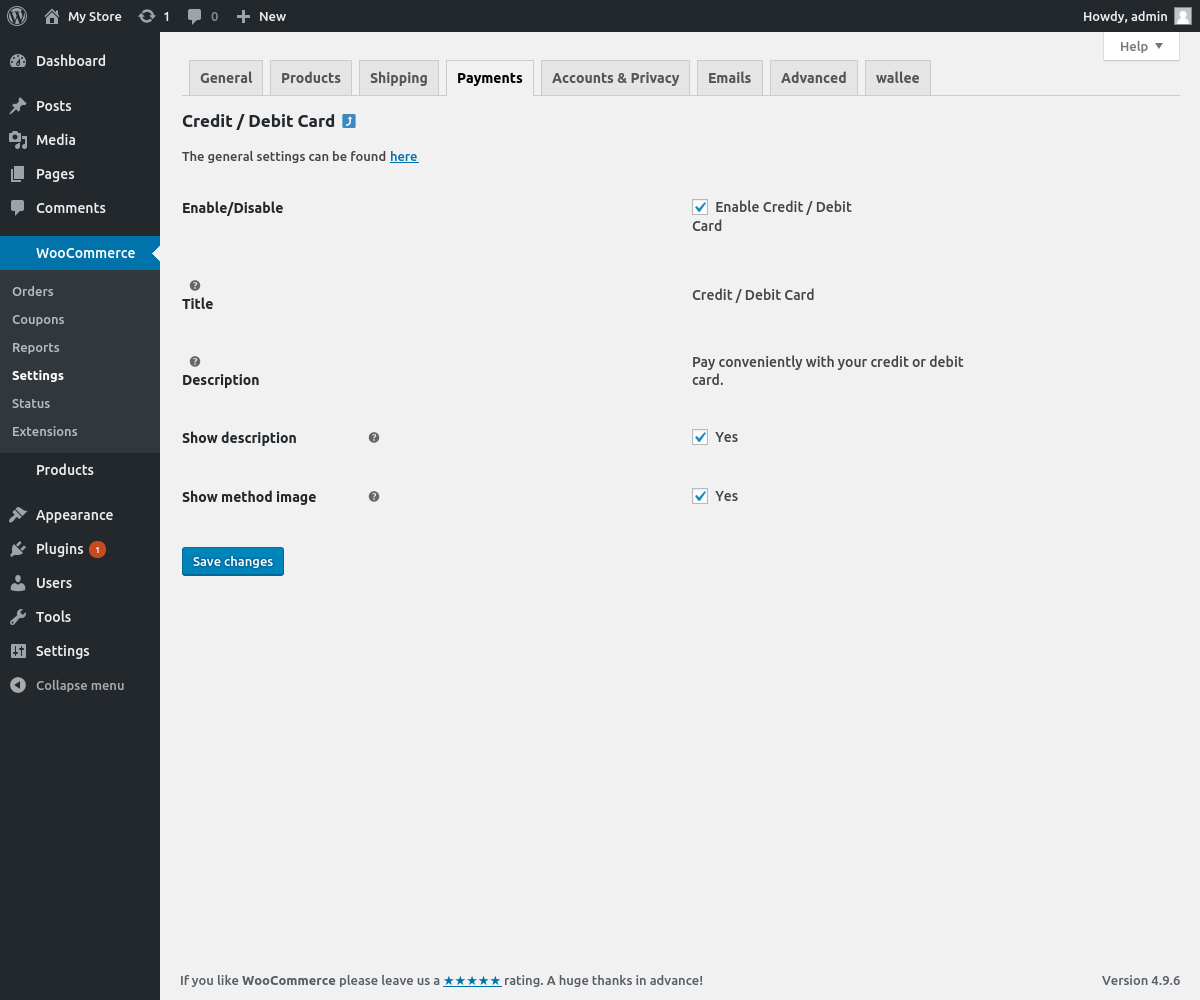
To view the payment method configuration: **WooCommerce > Settings > Payment**.
***
### Payment method configuration
#### Setup
* Payment method configurations are synchronized automatically into WooCommerce.
* Minimal settings are available under **WooCommerce > Settings > Payment**.\\
#### Method settings
* To change payment method **description, title, or logo**, update them in {inject-platform-name}. Changes will sync automatically.
* To map **payment statuses > order statuses**, use the **Order Statuses Settings** in the plugin.
***
### WooCommerce order status
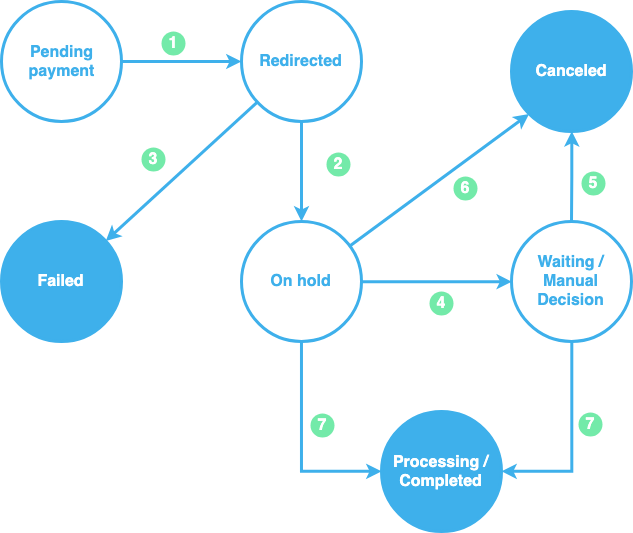
The Payment Process of {inject-platform-name} is **completely standardized** for **every payment method**. This gives you the ability to simply add a payment method or processor without changes inside of your WooCommerce configuration. An overview about the states and the payment processes of {inject-platform-name} can be found in the [Payment Documentation](/documentation/payments/overview/transaction-states.md).
Below you find a diagram that shows the state machine of the WooCommerce order including additional information for the state transitions.
Key flow:
| WooCommerce order status | When it is set |
| ----------------------------- | ----------------------------------------------------- |
| **Redirected** | The customer is redirected to {inject-platform-name}. |
| **On hold** | The transaction is authorized (amount reserved). |
| **Failed** | The authorization failed. |
| **Waiting / Manual Decision** | The delivery indication is pending. |
| **Canceled** | Fulfillment was denied or the transaction voided. |
| **Processing / Completed** | The transaction is fulfilled. |
{% hint style="info" %}
For details, see our [Payment Documentation](/documentation/payments/overview/transaction-states.md).
{% endhint %}
***
### Transaction management
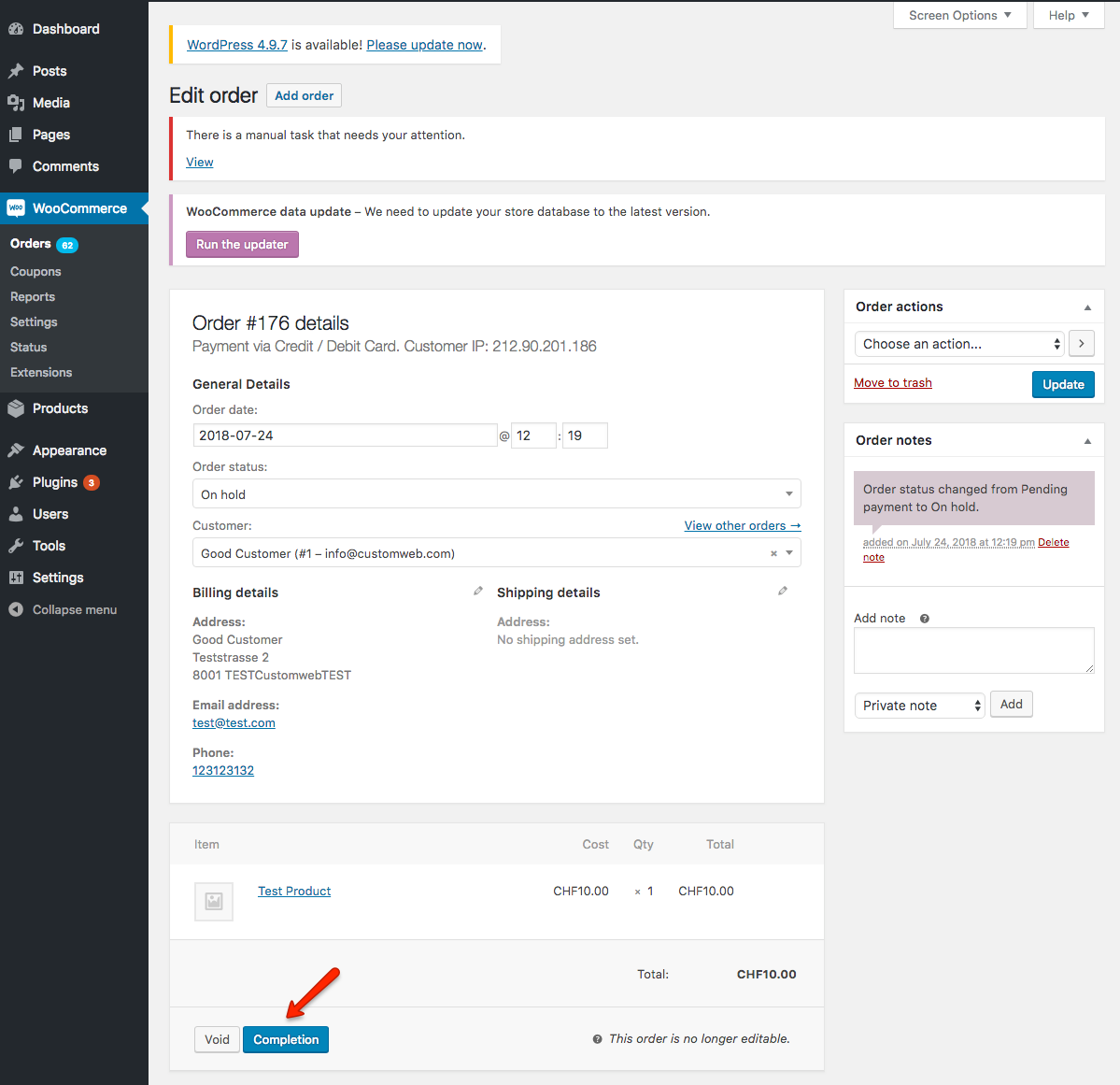
#### Capture (Complete an order)
You have the possibility for your transactions to have the payment only authorized after the order is placed. Inside the [connector configuration](/documentation/payments/overview/processors-payment-methods-and-connectors/connectors.md) you have the option, if the payment method supports it, to define whether the payment should be completed immediately or deferred.
* Capture transactions directly in WordPress backend.
* If completion is pending in {inject-platform-name}, the order remains **On hold**.\\
**Deferred payment completion**
* Useful if you only want to authorize transactions until items are ready to ship.
* Capture the transaction **before shipment** to avoid unpaid deliveries.
**Recommended steps**
1. Filter all **On hold** orders.
2. Capture them.
3. Fulfill all orders once they are in **Processing/Completed** state.
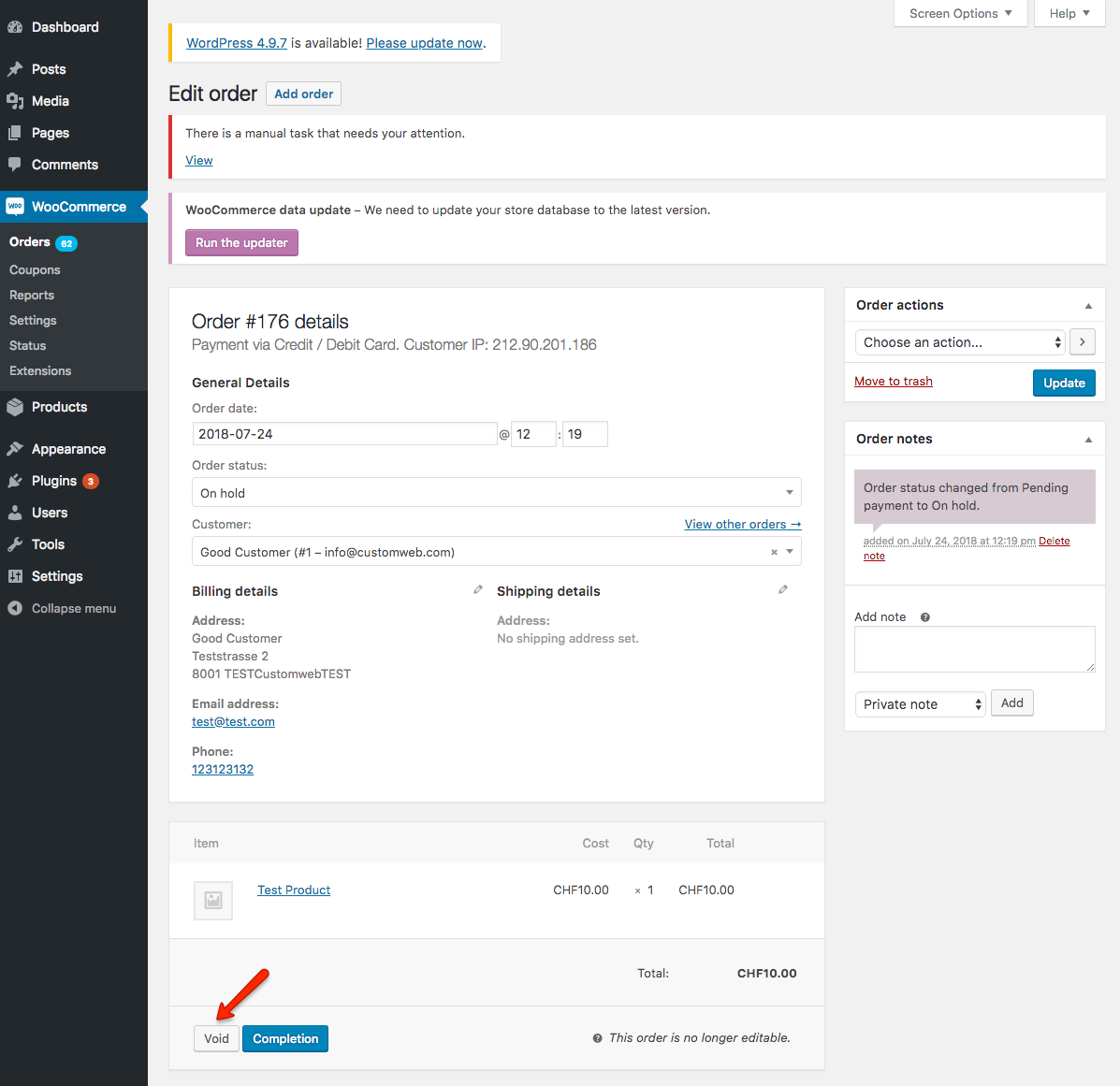
#### Void a transaction
* Open the order and click **Void**.
* Only possible for transactions not yet completed.\\
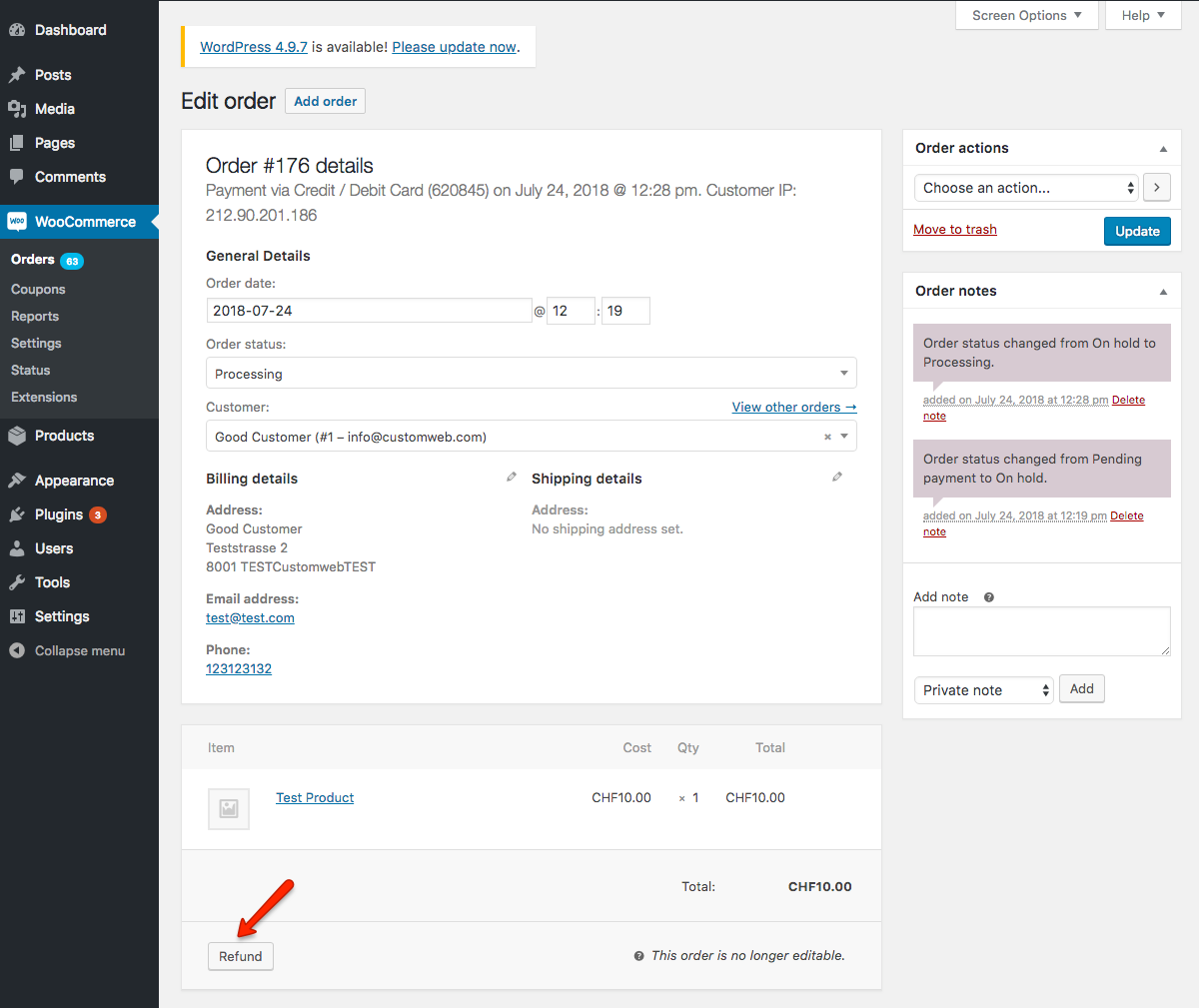
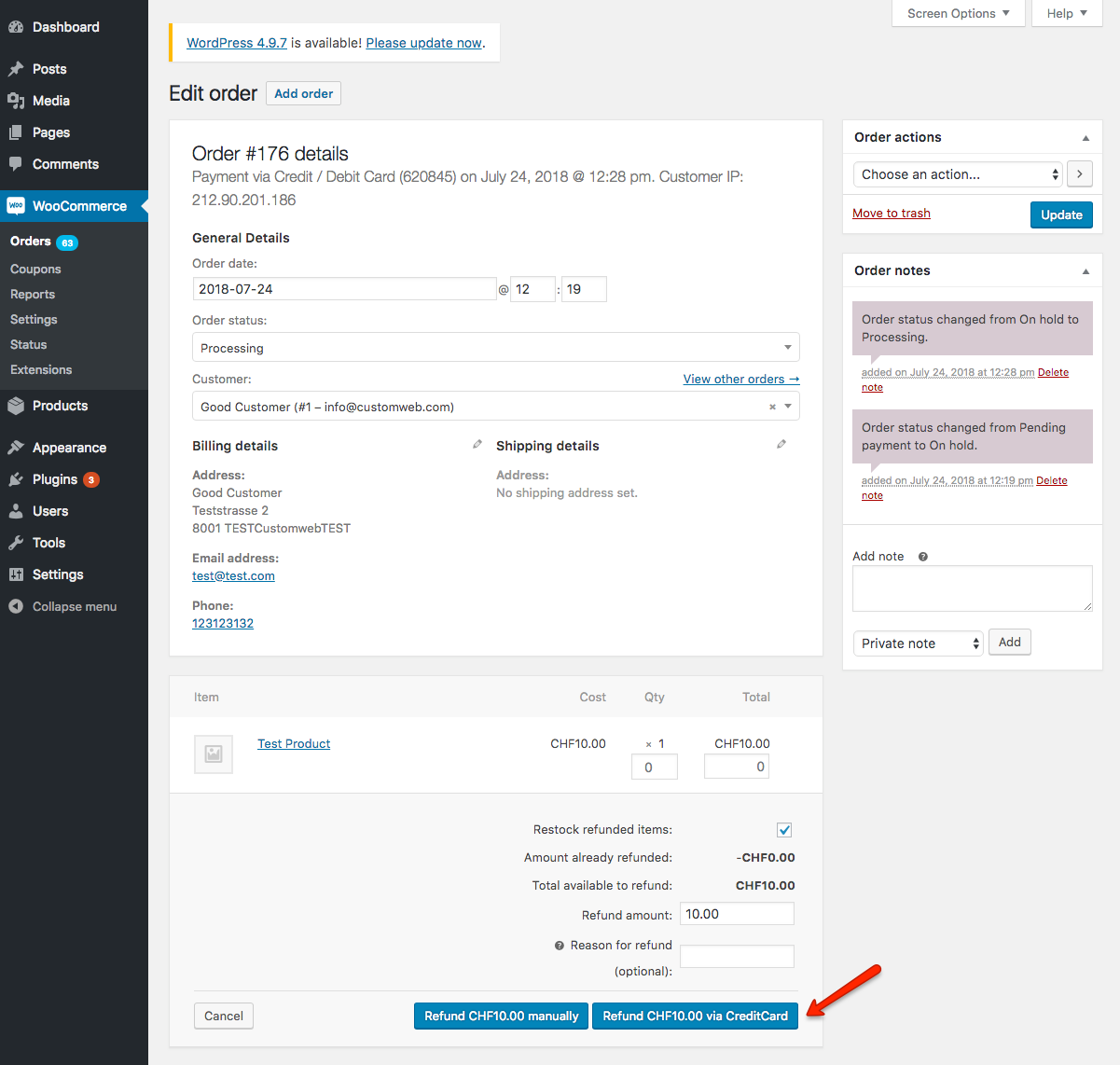
#### Refund a transaction
1. Open the order and click **Refund**.\\
2. Enter refund amount (partial or full).\\
3. Multiple partial refunds possible until original amount is reached.
{% hint style="warning" %}
Refunds are visible in WooCommerce only after being successfully processed.
{% endhint %}
***
### On-hold orders
Orders remain **On hold** if:
* The transaction is not yet completed.
* Delivery decision is pending (auto or manual task created).
{% hint style="info" %}
More details: [Manual Task Documentation](/documentation/readme/manual-tasks.md).
{% endhint %}
***
### Limitations of synchronization
{% hint style="warning" %}
**Captures, voids and refunds done in {inject-platform-name} are NOT synced back to WooCommerce.** Always perform these actions inside the WooCommerce backend — otherwise the WooCommerce order will show a state that no longer matches the actual payment.
{% endhint %}
***
### Tokenization
* If supported by the [payment method](/documentation/payments/integrations/payment-methods.md), customer payment details can be stored.
* Enable in **One-Click Payment Mode** (set to “allow” or “force storage”) — see [Tokenization](/documentation/payments/integrations/features/tokenization.md).
* Not available for guest checkouts.
***
### WooCommerce subscriptions
* To sell subscriptions, install the **{inject-platform-name} Subscription Plugin** from WordPress (search: “**{inject-platform-name}** Subscriptions”). See [Subscriptions](/documentation/payments/integrations/subscriptions.md) for how recurring billing works on the platform.
* Requires [WooCommerce Subscriptions](https://woocommerce.com/products/woocommerce-subscriptions) plugin.
***
### Error logging
* Uses WooCommerce’s default logging.
* Logs available under **WooCommerce > Status > Logs**.
***
### FAQ
#### How can I make the payment methods appear in checkout?
* Ensure Space ID, User ID, and Authentication Key are entered in **Settings**.
* Check methods under **WooCommerce > Settings > Payment** and activate them.
* Verify no other plugin is hiding payment methods.
#### How can I send product attributes to {inject-platform-name}?
* Only **global attributes** are supported (not custom attributes).
* Edit under **Products > Attributes > Send attribute to {inject-platform-name}**.
#### How can I update the plugin?
* Update directly in **WordPress > Plugins**.
* FTP credentials may be required.
#### How can I translate the plugin?
1. Install **Loco Translate** plugin.
2. Navigate: **Loco Translate > Plugins > WooCommerce {inject-platform-name}**.
3. Select an existing language to edit, or add a new one.
#### How can I add the value of a **Date Of Birth** or **Gender** input field from my checkout form to the {inject-platform-name} addresses?
**Billing Address Date of Birth**
For a custom billing date of birth input field to be used in the address the following conditions must be fulfilled:
1. The form field name has to be 'billing\_date\_of\_birth' or '\_billing\_date\_of\_birth' or an action has to be registered for the filter 'wc\_{inject-platform-name}\_billing\_date\_of\_birth\_field\_name' which returns the field name.
2. The field must be submitted in the 'post\_data' parameter in the **update\_order\_review** request.
3. The date must be saved on the order meta data with the key 'billing\_date\_of\_birth' or '\_billing\_date\_of\_birth' or an action has to be registered for the filter 'wc\_{inject-platform-name}\_billing\_date\_of\_birth\_order\_meta\_name' which returns the meta key.
4. The value must be in one of the following formats 'd.m.Y', 'd-m-Y', 'm/d/Y', 'Y-m-d', 'Y/m/d', or an action has to be registered for the filter 'wc\_{inject-platform-name}\_custom\_date\_of\_birth\_format' which returns a custom date format. (For more information on the date format check the following link: [PHP DateTime Format](https://secure.php.net/manual/en/datetime.createfromformat.php))
**Billing Address Gender**
For a custom billing gender input field to be used in the address the following conditions must be fulfilled:
1. The form field name has to be 'billing\_gender' or '\_billing\_gender' or an action has to be registered for the filter 'wc\_{inject-platform-name}\_billing\_gender\_field\_name' which returns the field name.
2. The field must be submitted in the 'post\_data' parameter in the **update\_order\_review** request.
3. The value must be saved on the order meta data with the key 'billing\_gender' or '\_billing\_gender' or an action has to be registered for the filter 'wc\_{inject-platform-name}\_billing\_gender\_order\_meta\_name' which returns the meta key.
4. The value must be either 'm' or 'male' for male and 'f' or 'female' for female.
**Shipping Address Date of Birth**
For a custom shipping date of birth input field to be used in the address the following conditions must be fulfilled:
1. The form field name has to be 'shipping\_date\_of\_birth' or '\_shipping\_date\_of\_birth' or an action has to be registered for the filter 'wc\_{inject-platform-name}\_shipping\_date\_of\_birth\_field\_name' which returns the field name.
2. The field must be submitted in the 'post\_data' parameter in the **update\_order\_review** request.
3. The date must be saved on the order meta data with the key 'shipping\_date\_of\_birth' or '\_shipping\_date\_of\_birth' or an action has to be registered for the filter 'wc\_{inject-platform-name}\_shipping\_date\_of\_birth\_order\_meta\_name' which returns the meta key.
4. The value must be in one of the following formats 'd.m.Y', 'd-m-Y', 'm/d/Y', 'Y-m-d', 'Y/m/d', or an action has to be registered for the filter 'wc\_{inject-platform-name}\_custom\_date\_of\_birth\_format' which returns a custom date format. (For more information on the date format check the following link: [PHP DateTime Format](https://secure.php.net/manual/en/datetime.createfromformat.php))
**Shipping Address Gender**
For a custom shipping gender input field to be used in the address the following conditions must be fulfilled:
1. The form field name has to be 'shipping\_gender' or '\_shipping\_gender' or an action has to be registered for the filter 'wc\_{inject-platform-name}\_shipping\_gender\_field\_name' which returns the field name.
2. The field must be submitted in the 'post\_data' parameter in the **update\_order\_review** request.
3. The value must be saved on the order meta data with the key 'shipping\_gender' or '\_shipping\_gender' or an action has to be registered for the filter 'wc\_{inject-platform-name}\_shipping\_gender\_order\_meta\_name' which returns the meta key.
4. The value must be either 'm' or 'male' for male and 'f' or 'female' for female.
***
### Support
If you need help, please [contact our support](mailto:support@wallee.com).