> For the complete documentation index, see [llms.txt](https://wallee.gitbook.io/documentation/llms.txt). Markdown versions of documentation pages are available by appending `.md` to page URLs; this page is available as [Markdown](https://wallee.gitbook.io/documentation/payments/integrations/plugins/overview.md).
# Overview
### What is a plugin?
A payment system plugin is an extension for online stores that makes it possible to integrate various payment methods into the checkout process. These plugins facilitate payment processing and ensure that customers can pay for their orders securely and conveniently.
A store without a functioning payment system cannot accept orders. Payment system plugins ensure that customers can use their preferred payment method — be it **credit card, PayPal, TWINT or payment on account**. See [Payment Methods](/documentation/payments/integrations/payment-methods.md) for an overview of all available payment methods.
We provide a variety of plugins for different store systems. These ready-made extensions facilitate the integration of various payment methods without the need for in-depth programming knowledge. A complete overview of all available plugins and supported platforms is available in the [plugin directory](https://wallee.com/entwickler/plugins).
### How do I configure a plugin?
The configuration depends on the store system used, as each system is structured differently. There are basically two different types of integration:
{% tabs %}
{% tab title="With an integrated feature" %}
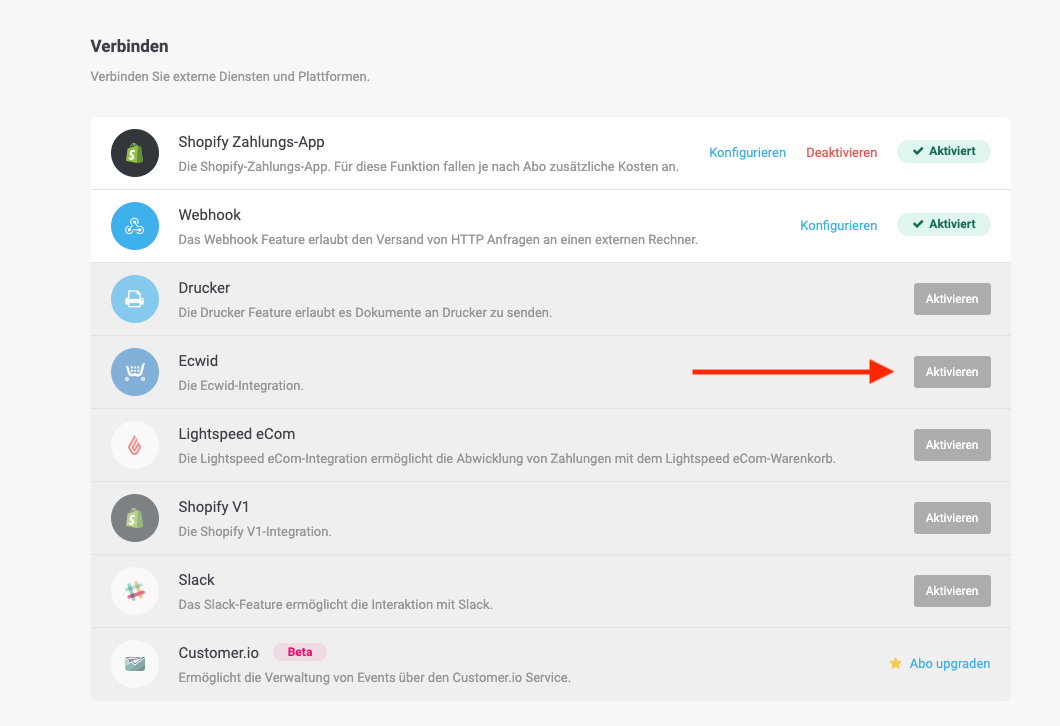
For some store systems — such as **Lightspeed eCom, Shopify and Ecwid** — we offer a directly integrated feature. It can be set up in just a few steps.
**1. Activate the feature**
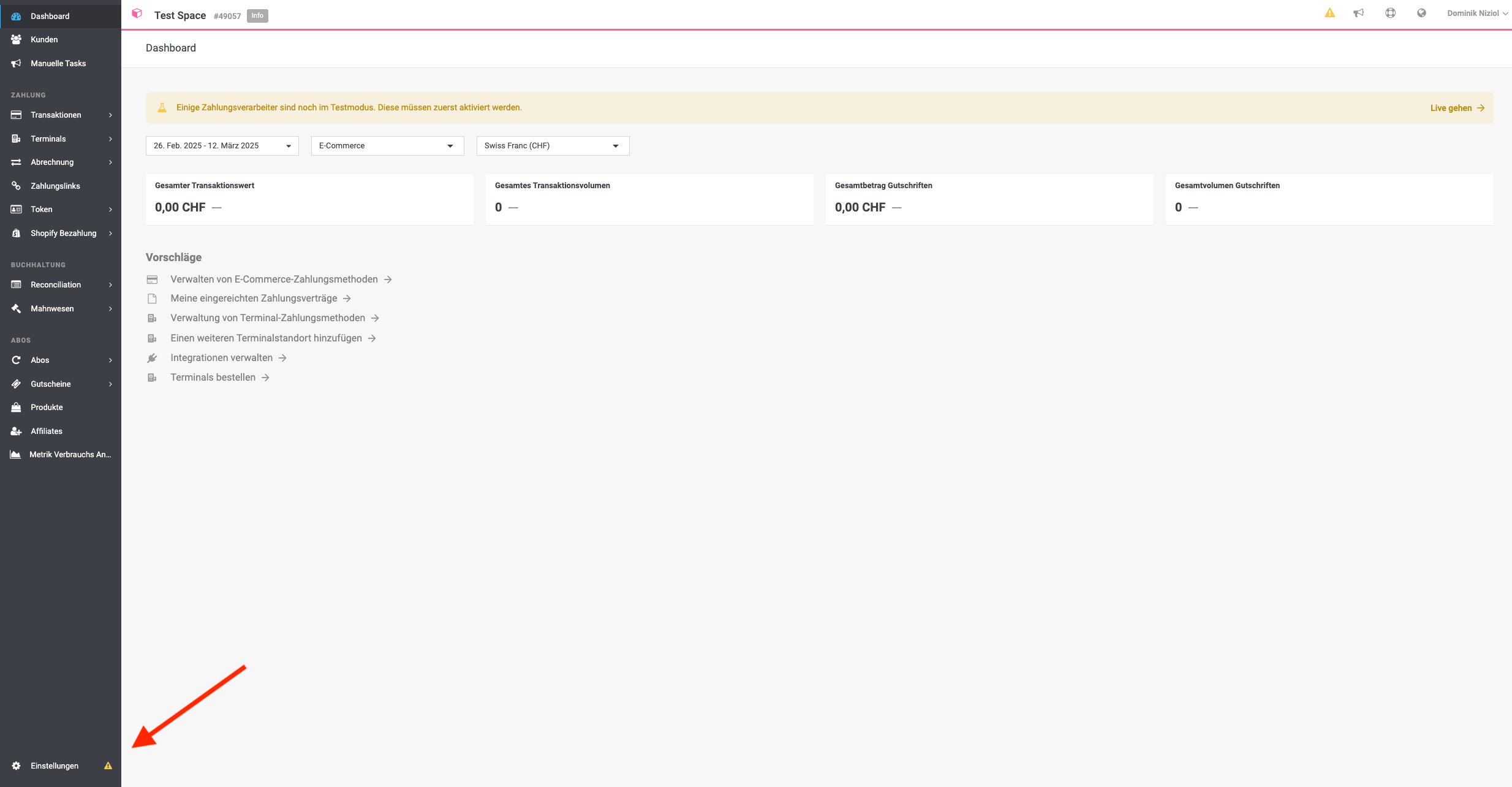
Log in to {inject-platform-name} and navigate to **Space > Settings**.
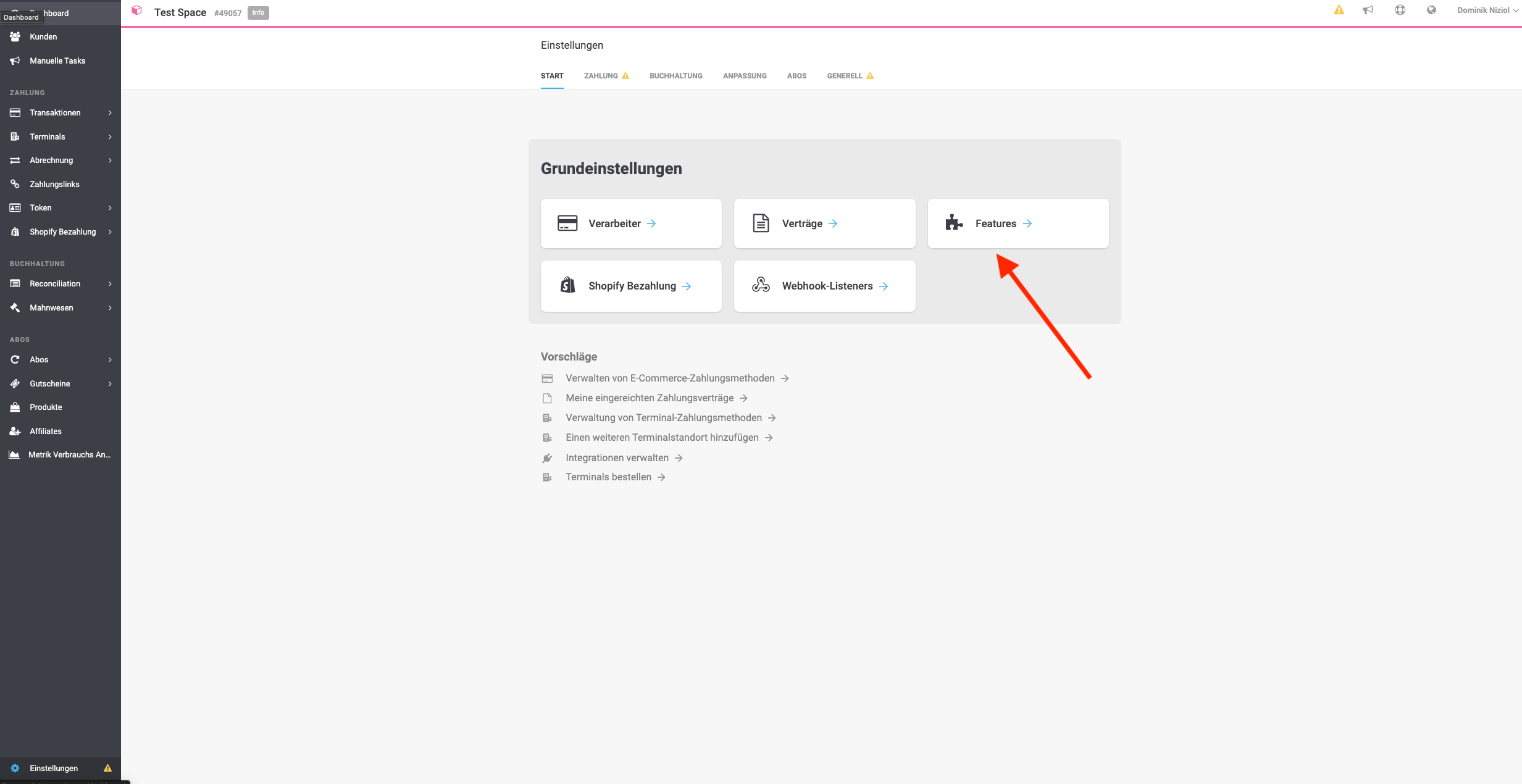
Open **Settings > Features**.
Activate the feature for your store system.
**2. Create the connection to the store system**
After activation, the connection between the platform and the store system must be set up. Follow the instructions in the portal or in your store's plugin.
{% endtab %}
{% tab title="With an application user" %}
Store systems without an integrated feature — for example **Magento, WooCommerce, PrestaShop and Shopware** — connect via an application user.
You can [start your integration here](https://{inject-platform-url}/space/select?target=/space/assistant/integration/list).
**1. Create an application user**
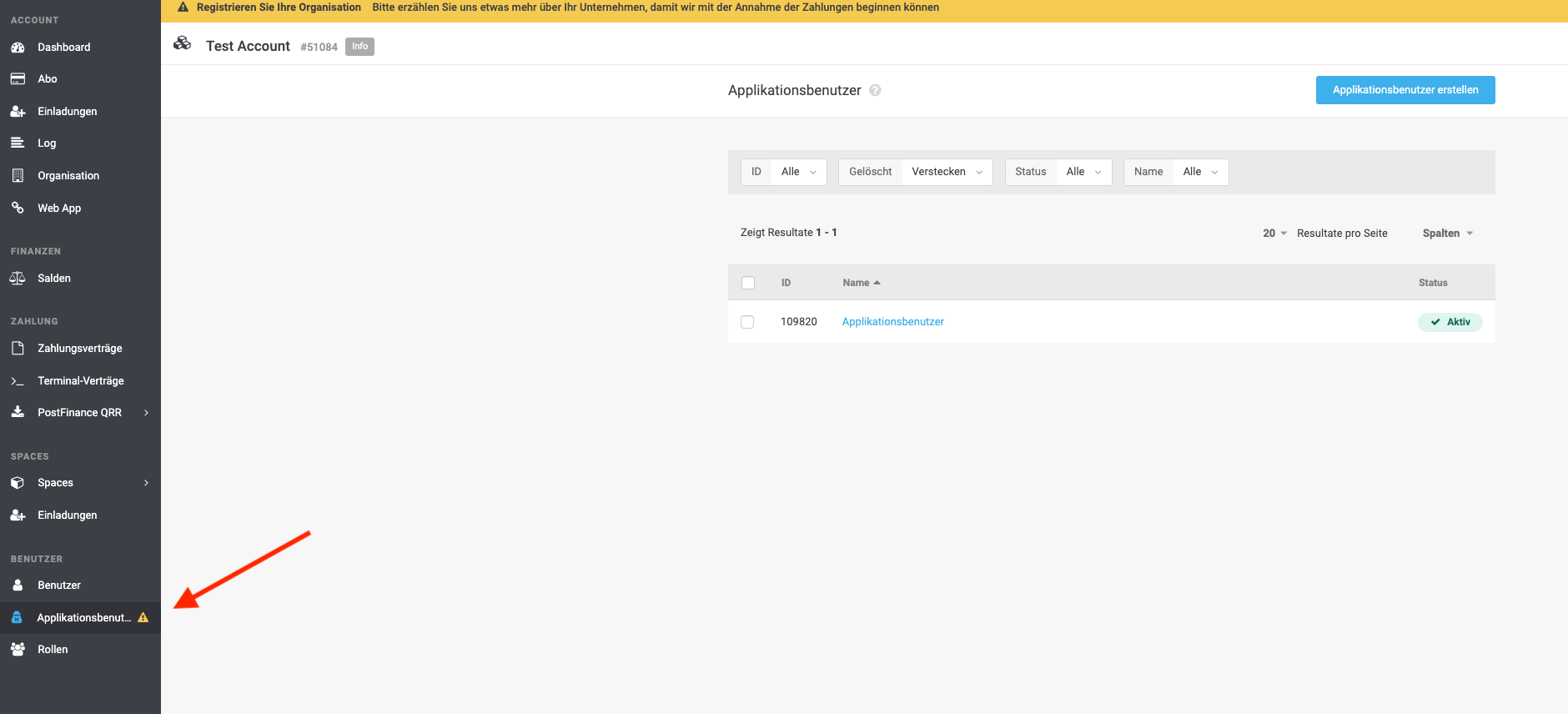
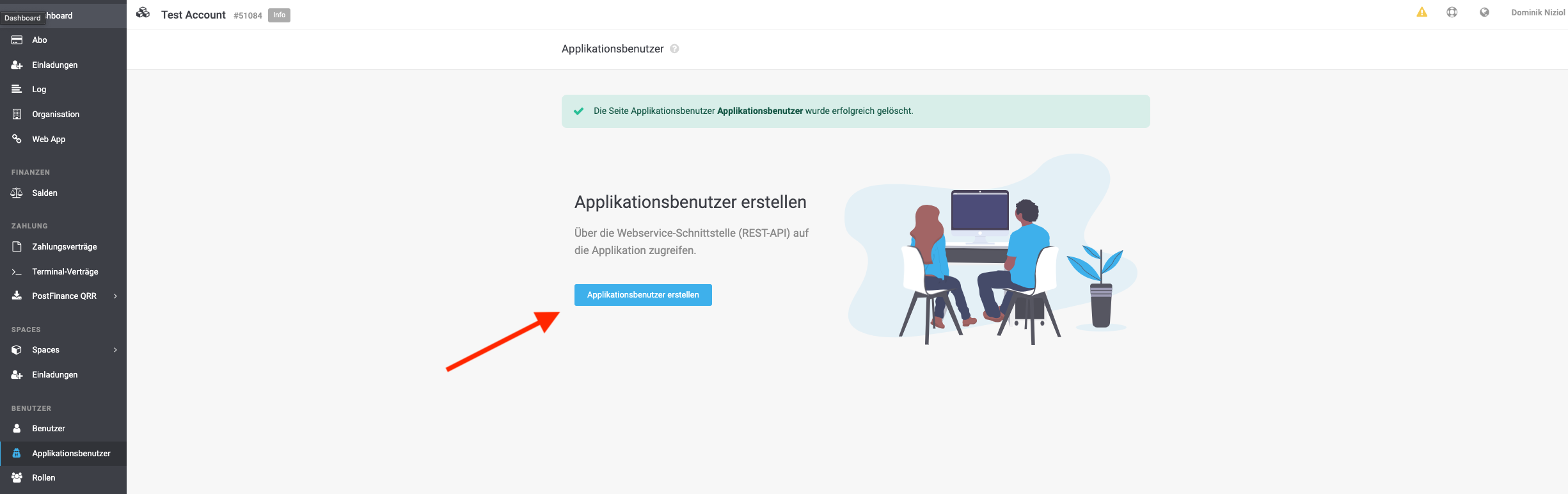
In the portal, navigate to **Account > Application user**.
Click **Create application user**.
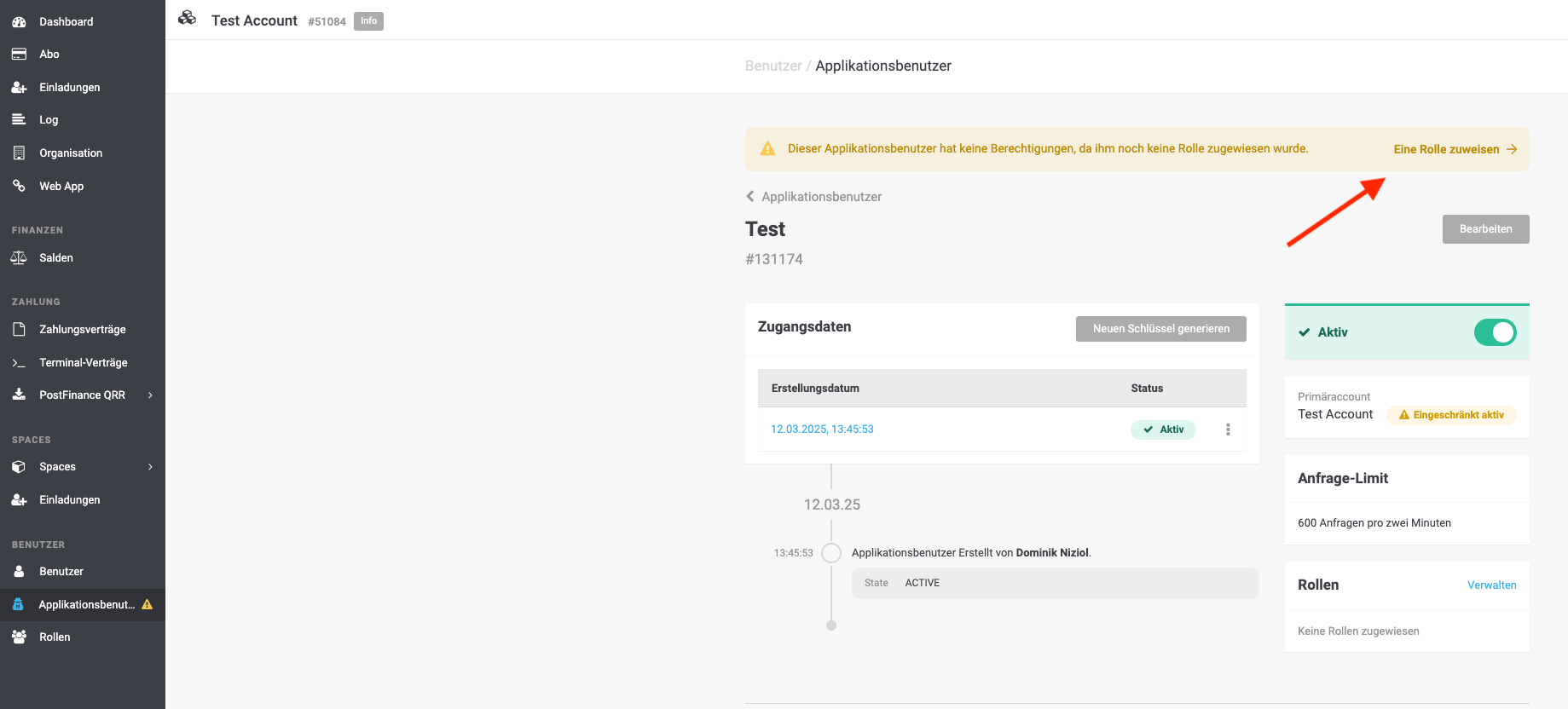
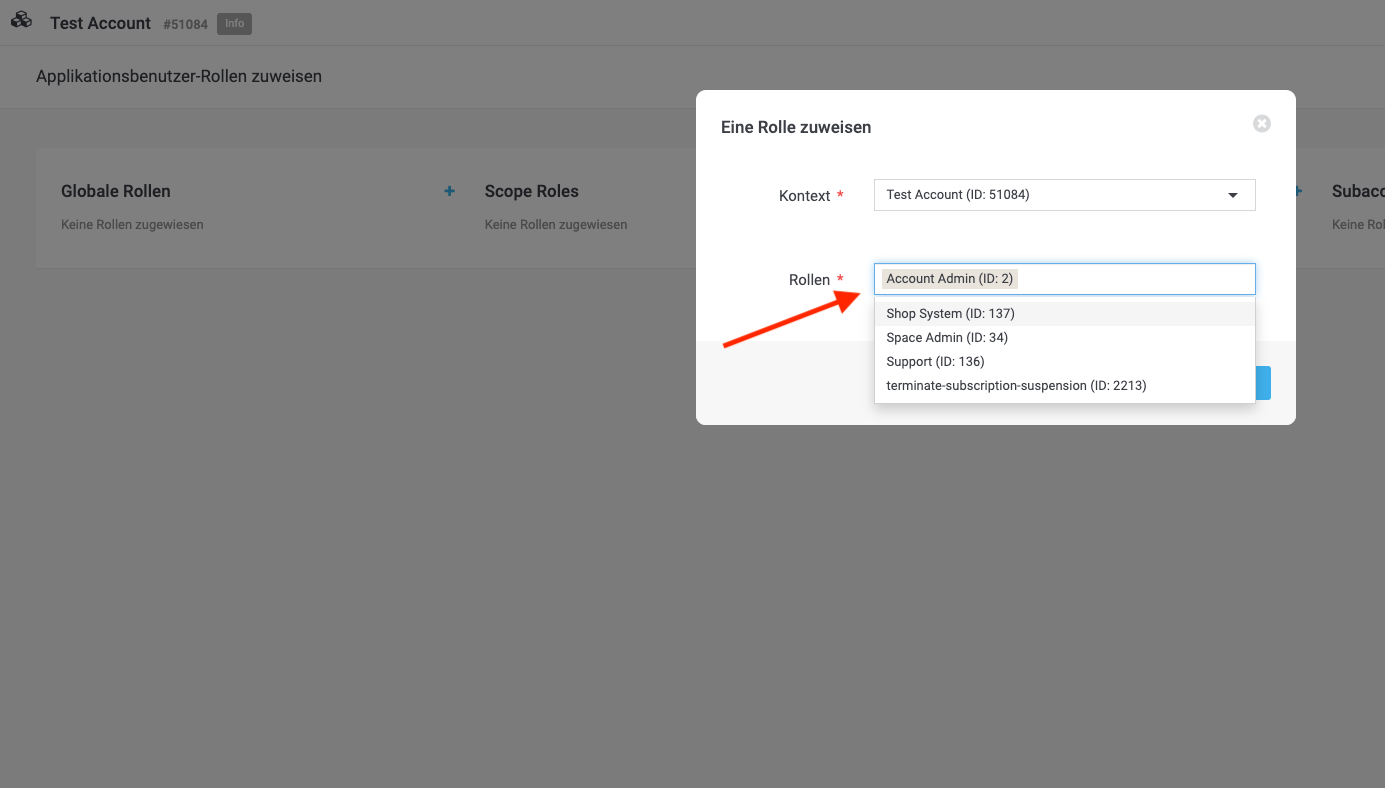
Assign a role.
Assign the role **Account Admin** and save the access data.
{% hint style="warning" %}
The application user key is shown only once. Store it safely before leaving the page — see [Users, Roles and Invites](/documentation/readme/account-structure/permission-concept.md).
{% endhint %}
**2. Establish the connection in the store system**
Open the backend of your store system, enter the data of the application user and the space ID, save the settings and test the connection.
{% endtab %}
{% endtabs %}
### Plugin-specific instructions
The steps above are the same for every plugin. What differs is the store-system side:
* [Built by wallee](/documentation/payments/integrations/plugins/built-by-wallee.md) — Shopware 6, WooCommerce, Magento 2 and OpenCart, documented here in detail.
* [Built with our partners](/documentation/payments/integrations/plugins/built-with-our-partners.md) — Peppershop and Odoo.
* [Hospitality Plugins](/documentation/payments/integrations/plugins/hospitality-plugins.md) — Opera Cloud, Protel, Oracle Symphony and OPI.
* [Shopify](/documentation/payments/integrations/plugins/shopify.md) — the Shopify integration.