> For the complete documentation index, see [llms.txt](https://wallee.gitbook.io/documentation/llms.txt). Markdown versions of documentation pages are available by appending `.md` to page URLs; this page is available as [Markdown](https://wallee.gitbook.io/documentation/payments/integrations/plugins/shopify/shopify-integration.md).
# Shopify Integration
Shopify is a Canadian e-commerce company based in Ottawa, Ontario, that develops computer software for online stores and point-of-sale systems for retail businesses. We have developed an integration with Shopify’s payment gateway, allowing you to process transactions in your Shopify store using your preferred payment method through {inject-platform-name}. Please follow the steps below to integrate {inject-platform-name} payments into your Shopify backend.
### Enable the Shopify payment feature
Before integrating {inject-platform-name} with your Shopify store, ensure the Shopify feature is activated in your account:
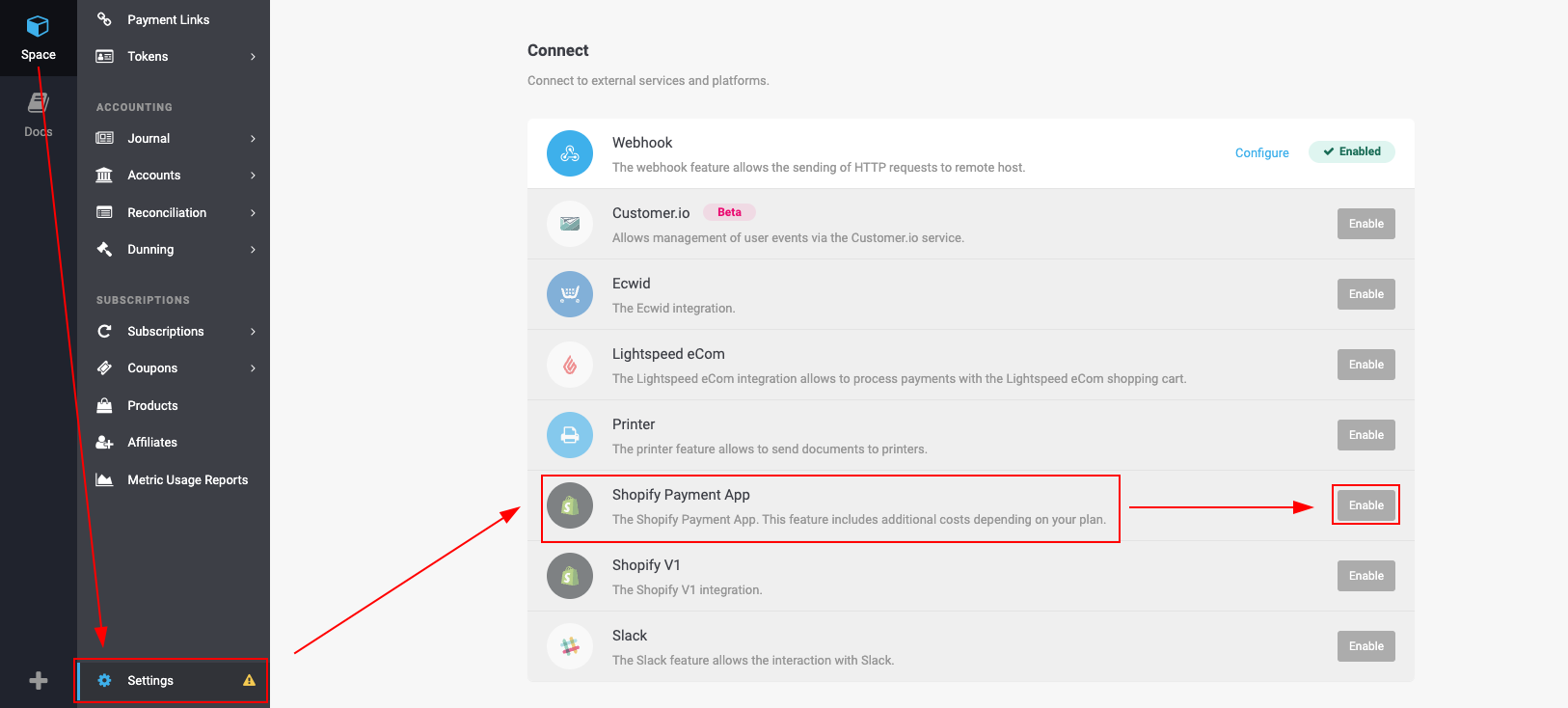
1. Search for Shopify Payments in the [list of features](https://{inject-platform-url}/space/select?target=/space/feature/list).
2. Click Activate.
3. Click Configure to proceed with the setup.
{% hint style="info" %}
If the Shopify feature is not available in your space, please have a look at your [chosen](https://{inject-platform-url}/account/select?target=/account/billing/view) plan and validate if Shopify is included.
{% endhint %}
### Create the Shopify integration
1. If you clicked Configure in the previous step, you will now be on the Shopify integration setup page. If not, go to **Space > Settings >** [**Shopify Payment**](https://{inject-platform-url}/space/select?target=/shopify-payment/integration/list) in your dashboard.
2. Click Create Integration.
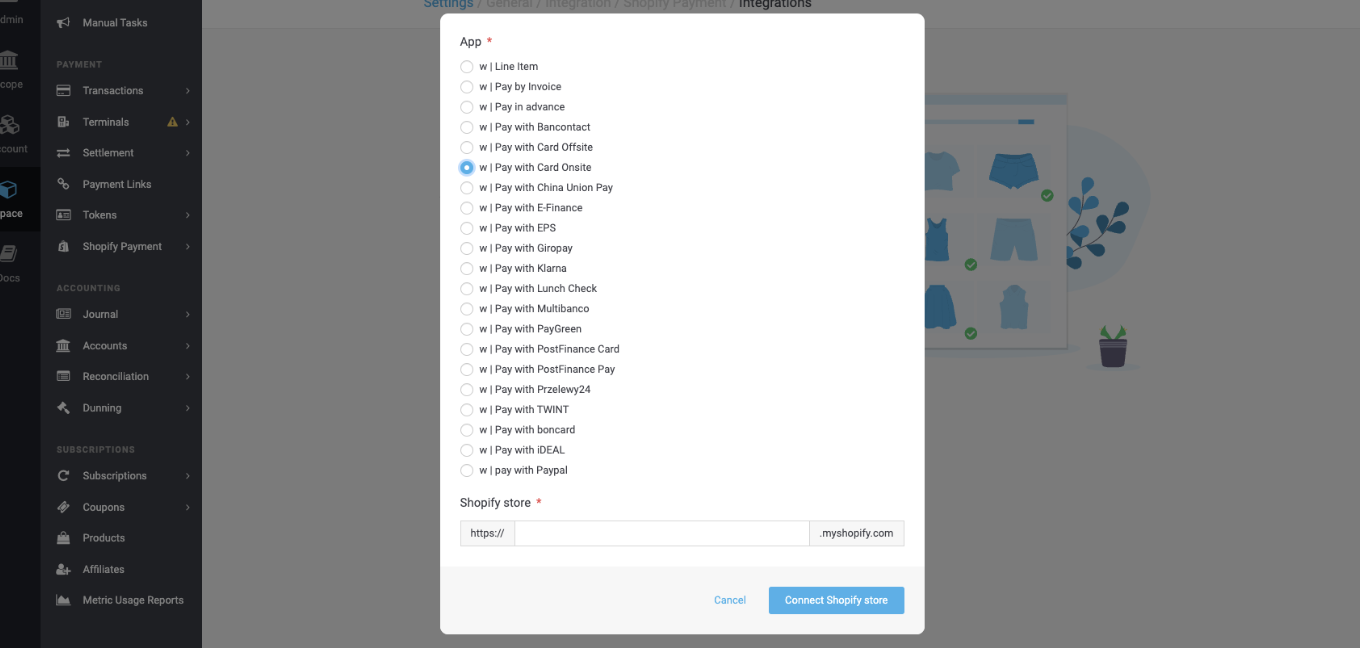
3. Enter the exact name of your Shopify store as used in your admin URL.
* Example: If your store URL is myshopname.myshopify.com, enter myshopname.
4. Select the payment methods you want to enable for Shopify checkout.
5. Click Connect Shopify Store.
{% hint style="info" %}
**Line item:** Activate this, if you want to have all separate items of your shopping cart listed as part of a transaction displayed in the {inject-platform-name} portal.
**Pay with Card Offsite:** Activate this, if you want to be redirected to a separate site during credit card payments. If you want to include Apple Pay, Google Pay and Click to Pay choose this option.
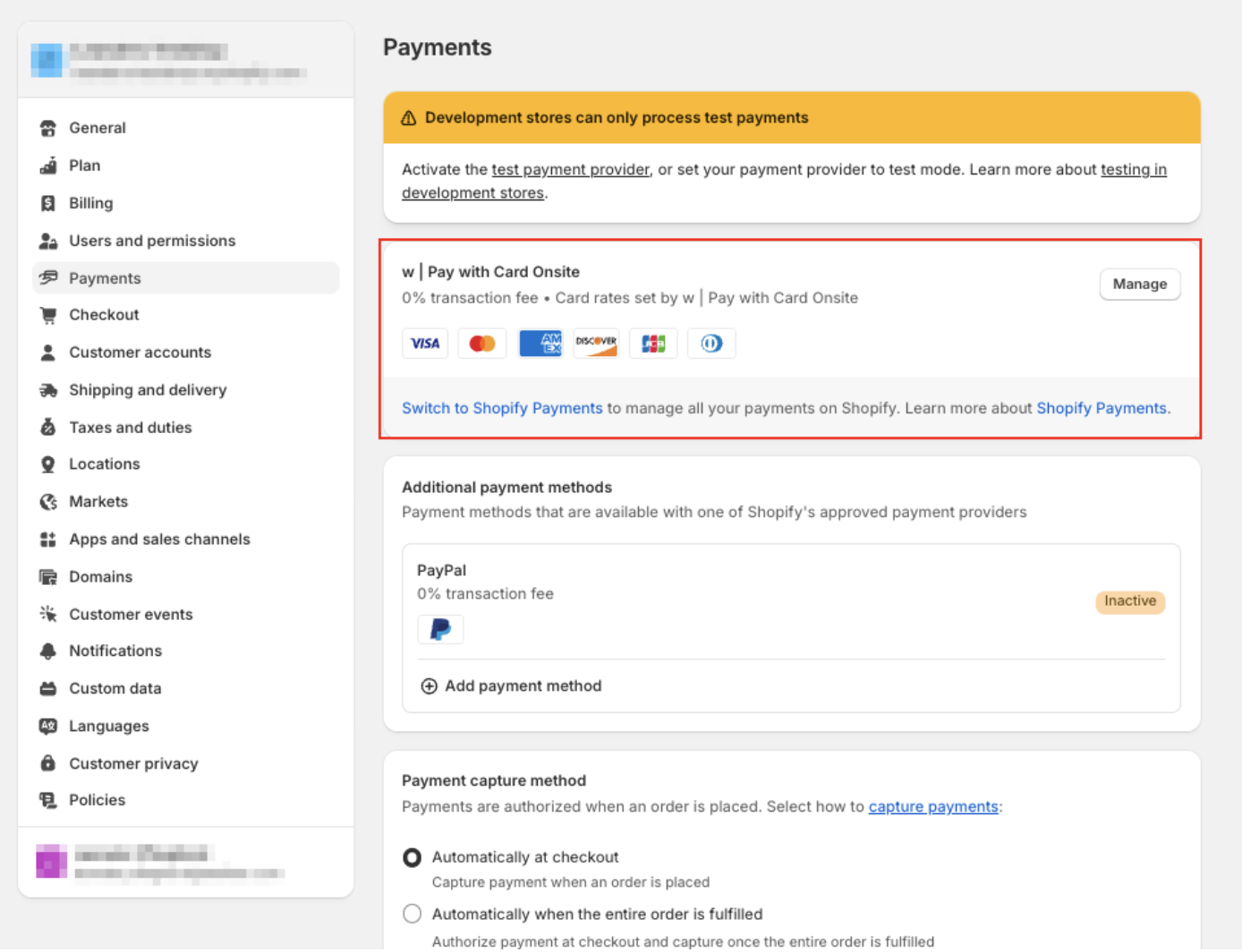
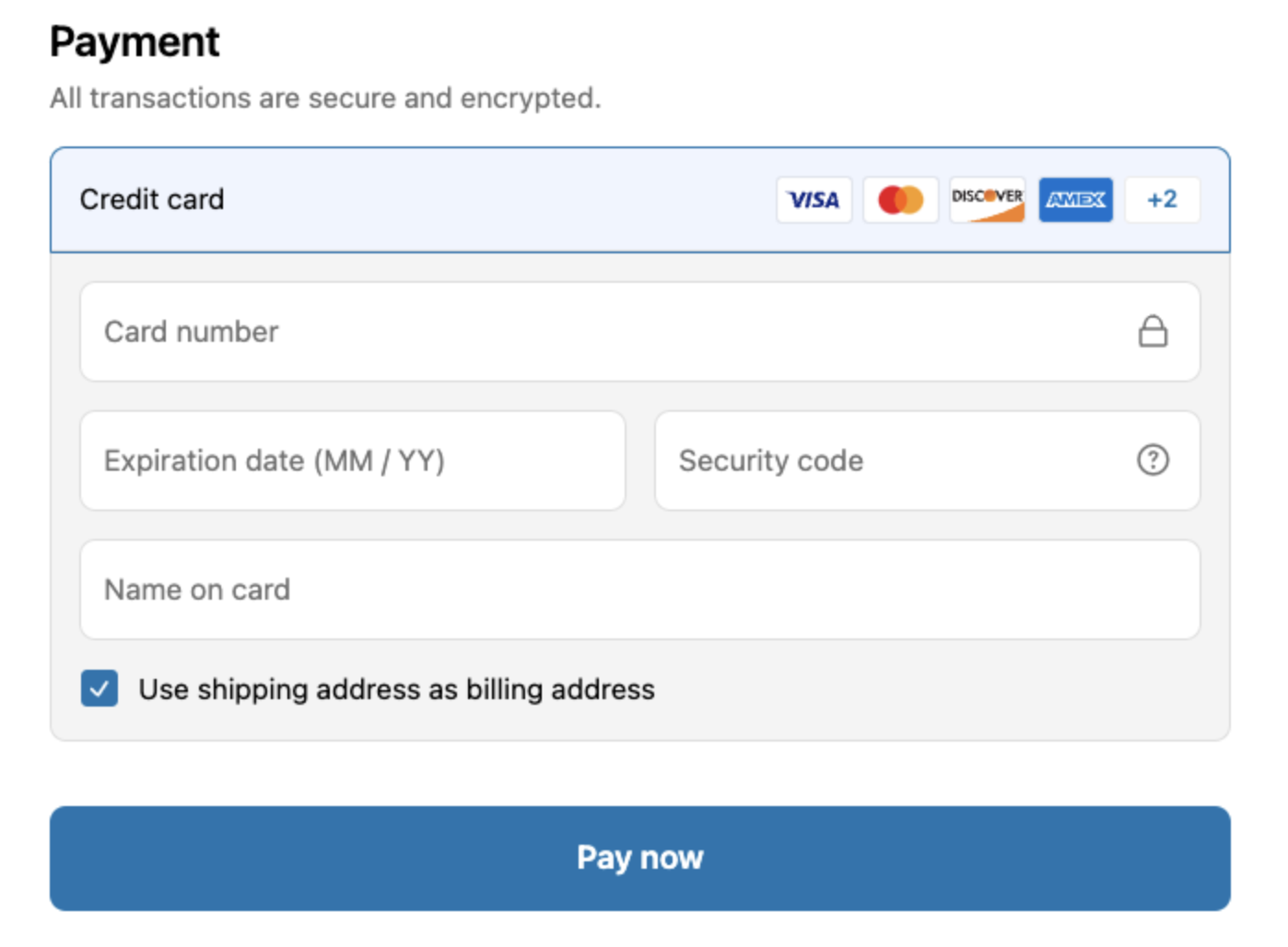
**Pay with Card Onsite:** Activate this, if you want your users to enter the payment details directly on your checkout site. \\
Make sure you **either** select Offsite or Onsite. We don't recommend setting up both.
{% endhint %}
{% hint style="info" %}
Repeat these steps for every payment method you want to integrate.
{% endhint %}
### Install the {inject-platform-name} Shopify app
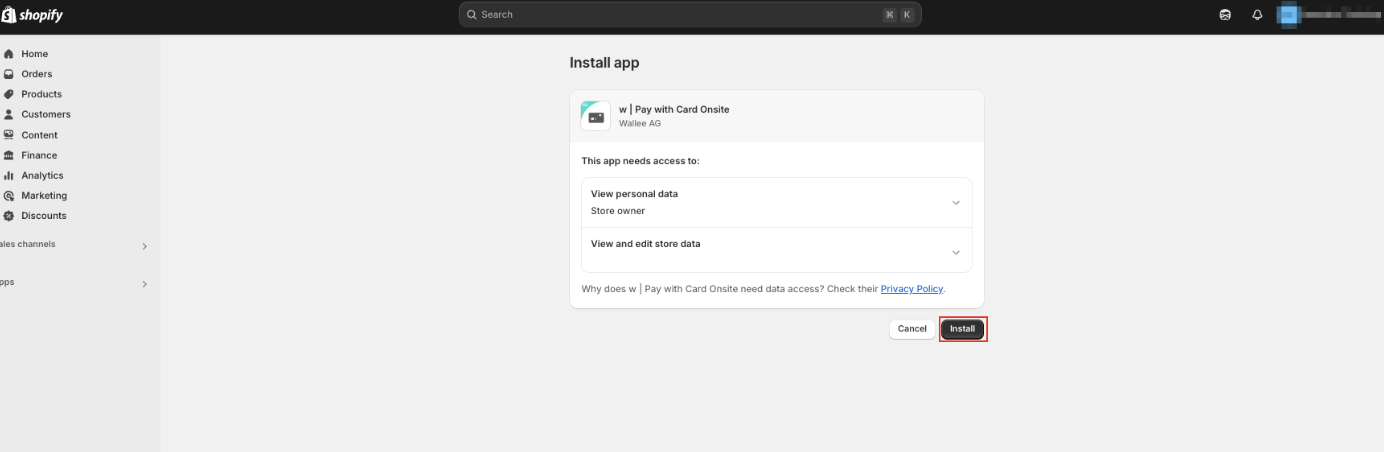
1. After clicking Connect Shopify Store, you will be redirected to your Shopify admin panel.
2. The integration will now be added to your Shopify store.
3. Follow the on-screen instructions to complete the app installation.
{% hint style="info" %}
To install more payment methods, click [here](https://{inject-platform-url}/space/select?target=/shopify-payment/integration/list).
{% endhint %}
### Activate the payment integration
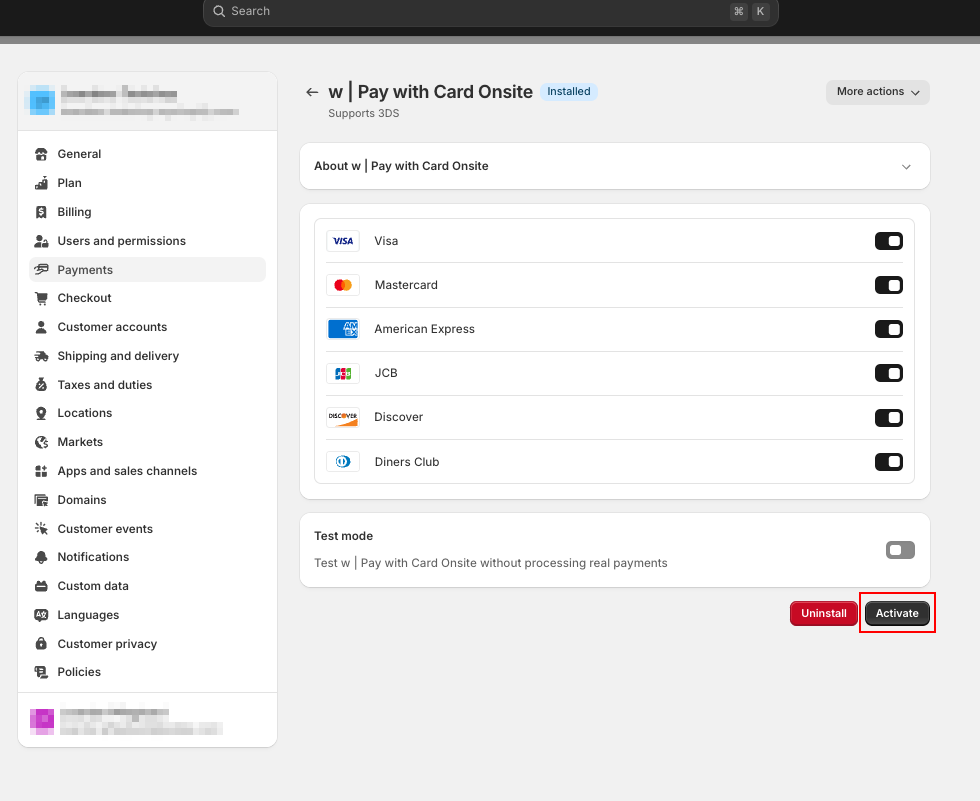
1. After installation, you will be automatically redirected to the payment settings. If not, navigate to **Settings > Payments** in your Shopify admin.
2. Locate {inject-platform-name} Payments in the list of available payment providers.
3. Click Activate to enable {inject-platform-name} as a payment method.
4. Adjust any additional settings according to your preferences.
### Final confirmation
You have successfully installed and activated the {inject-platform-name} Shopify Payments integration. {inject-platform-name} should now appear in your Shopify payment settings and be available as a payment option during checkout.
### Related topics
* [Integration with {inject-platform-name}](/documentation/payments/integrations/plugins/shopify/integration-with-inject-platform-name.md) — payment processing, the state graph and transaction management once the integration runs.
* [Payment Methods](/documentation/payments/integrations/payment-methods.md) — the methods you can offer in the Shopify checkout.